> ## Documentation Index
> Fetch the complete documentation index at: https://docs.bloxcord.net/llms.txt
> Use this file to discover all available pages before exploring further.
# Creating Your Organization
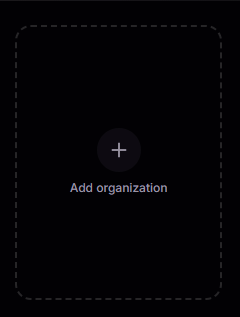
> Bring your Roblox community to BloxCord in three simple steps: create an organization, connect your Roblox group, and install the in-game SDK. Once your account is linked, your organizations will appear on the home screen, where you can also create a new one using the plus button.
 ## Before You Start
To prevent unauthorized users from claiming a community, we run a few eligibility checks before letting you create an organization.
Your rank in the Roblox group must be **ID 253 or higher**.
The community can't already exist as an organization on BloxCord.
## Before You Start
To prevent unauthorized users from claiming a community, we run a few eligibility checks before letting you create an organization.
Your rank in the Roblox group must be **ID 253 or higher**.
The community can't already exist as an organization on BloxCord.
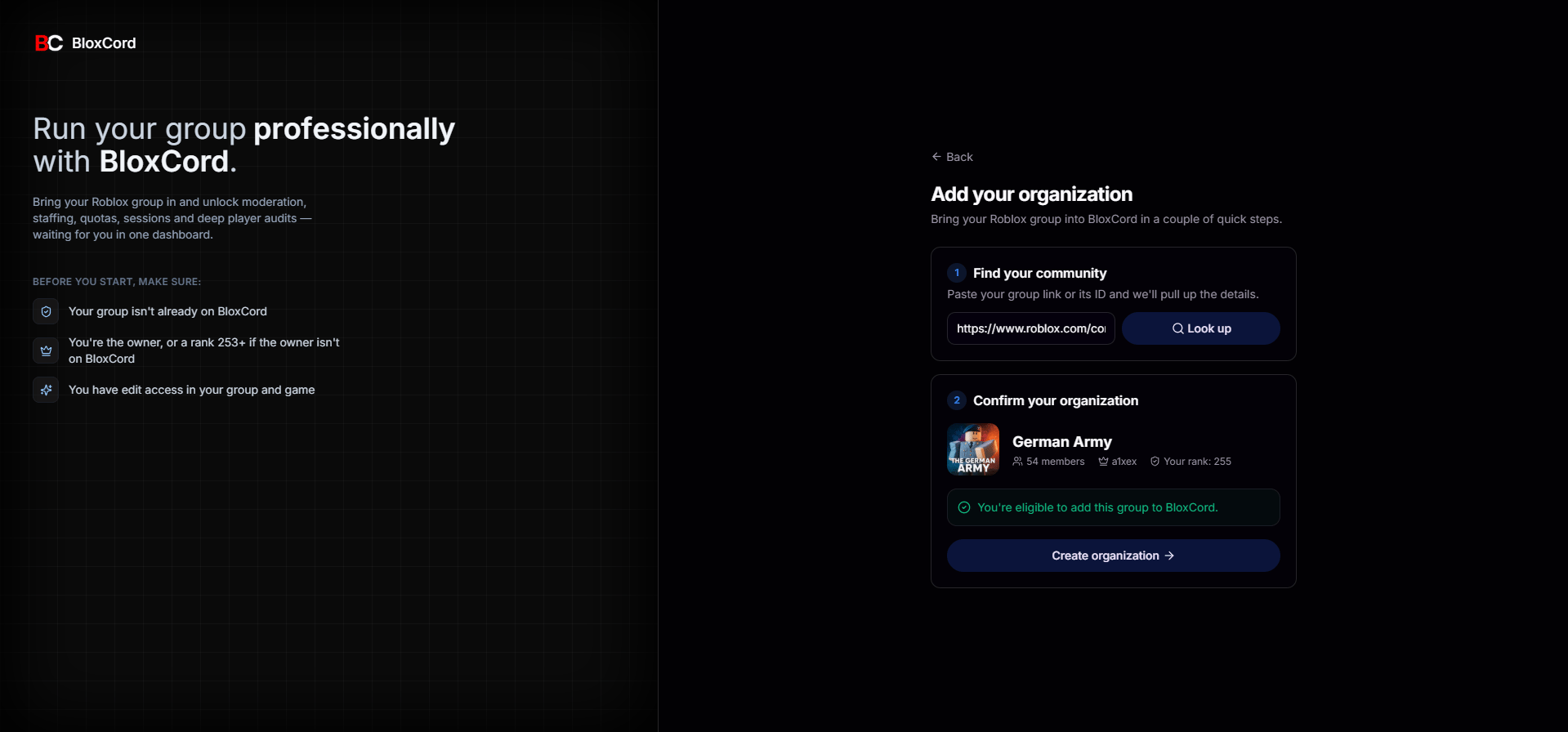 Paste your Roblox group link or ID. We'll pull the group details and, if you're eligible, you'll see a green confirmation with a **Create organization** button.
If an **unauthorized user** has created an organization for your community, please [**contact us**](#need-a-hand), preferably through our **Discord server**, and our team will assist you. We may ask for additional information to **verify that you are the rightful owner** of the Roblox community.
## The Three-Step Setup
After you claim the community, we walk you through three quick steps before opening up your dashboard.
Head to the [Roblox Creator Hub](https://create.roblox.com/dashboard/credentials) and create an API key **under your group**, not your user account.
BloxCord guides you through the exact permissions to enable so we only request what we need, nothing more.
Next we make sure the BloxCord SDK is installed in your experience. Most of the time it isn't yet, so we walk you through it.
Paste your Roblox group link or ID. We'll pull the group details and, if you're eligible, you'll see a green confirmation with a **Create organization** button.
If an **unauthorized user** has created an organization for your community, please [**contact us**](#need-a-hand), preferably through our **Discord server**, and our team will assist you. We may ask for additional information to **verify that you are the rightful owner** of the Roblox community.
## The Three-Step Setup
After you claim the community, we walk you through three quick steps before opening up your dashboard.
Head to the [Roblox Creator Hub](https://create.roblox.com/dashboard/credentials) and create an API key **under your group**, not your user account.
BloxCord guides you through the exact permissions to enable so we only request what we need, nothing more.
Next we make sure the BloxCord SDK is installed in your experience. Most of the time it isn't yet, so we walk you through it.
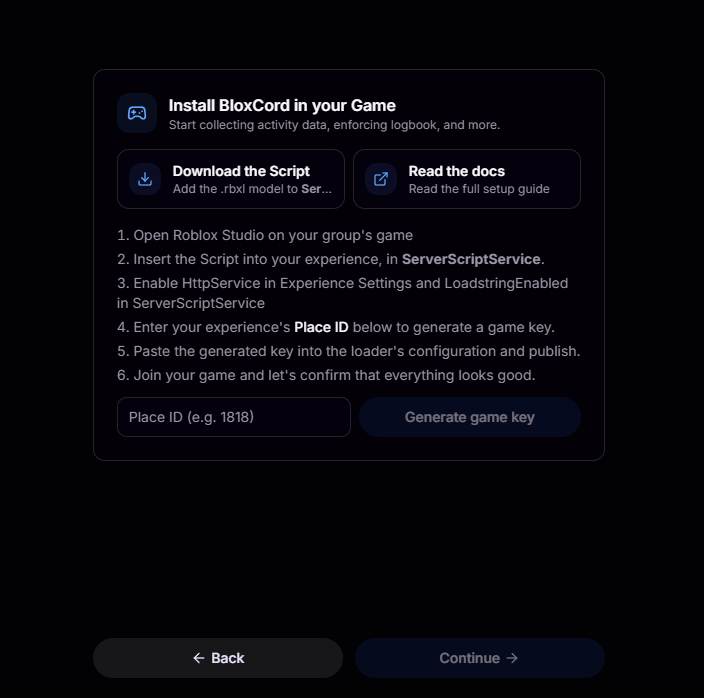 Click **Download the Script**, follow the instructions to add it to `ServerScriptService`, and enable `HttpService` and `LoadstringEnabled`.
Your **Place ID** is the number in your game's URL. For example, in `https://www.roblox.com/games/3421472751/Stateview-Prison`, the Place ID is `3421472751`.
Enter it and BloxCord will verify the connection to your place.
Once all three steps check out, your dashboard opens up and you're ready to start managing with everything BloxCord has to offer.
## Need a hand?
If anything goes sideways during setup, we're here to help.
Reach out to our team directly.
Get real-time help from the community and our staff.
Click **Download the Script**, follow the instructions to add it to `ServerScriptService`, and enable `HttpService` and `LoadstringEnabled`.
Your **Place ID** is the number in your game's URL. For example, in `https://www.roblox.com/games/3421472751/Stateview-Prison`, the Place ID is `3421472751`.
Enter it and BloxCord will verify the connection to your place.
Once all three steps check out, your dashboard opens up and you're ready to start managing with everything BloxCord has to offer.
## Need a hand?
If anything goes sideways during setup, we're here to help.
Reach out to our team directly.
Get real-time help from the community and our staff.