> ## Documentation Index
> Fetch the complete documentation index at: https://docs.bloxcord.net/llms.txt
> Use this file to discover all available pages before exploring further.
# Forms
> Your workflow doesn't end with reports. Create forms, collect responses, and analyze the results, all without leaving BloxCord.
Forms must be enabled before forms can be created, submitted, or managed. Visit the Features tab to get started.
 ## Build At Ease, See Responses At Ease
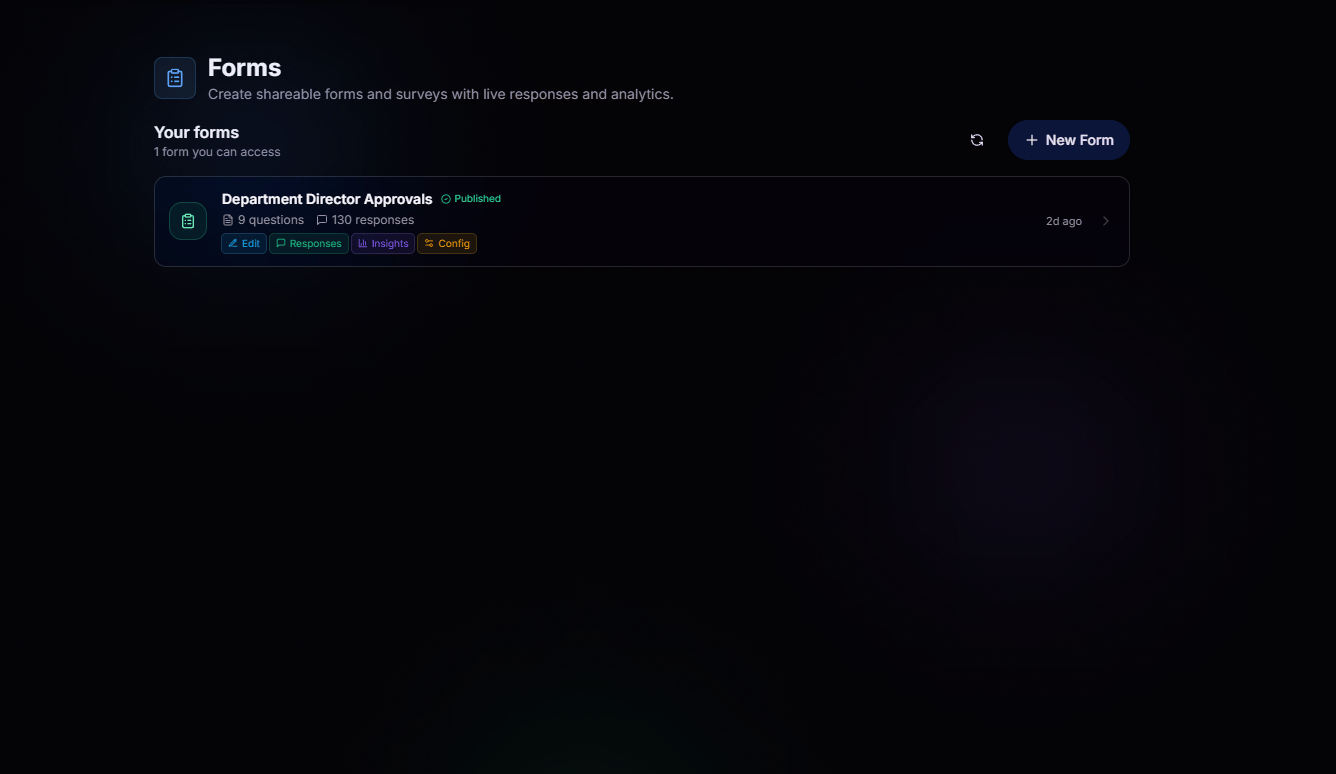
Build forms your way. Add multiple choice, checkboxes, text, linear scales, dropdowns, and more, then publish in seconds. Responses stream in with live summaries and per-question insights, no spreadsheets required.
## Build At Ease, See Responses At Ease
Build forms your way. Add multiple choice, checkboxes, text, linear scales, dropdowns, and more, then publish in seconds. Responses stream in with live summaries and per-question insights, no spreadsheets required.
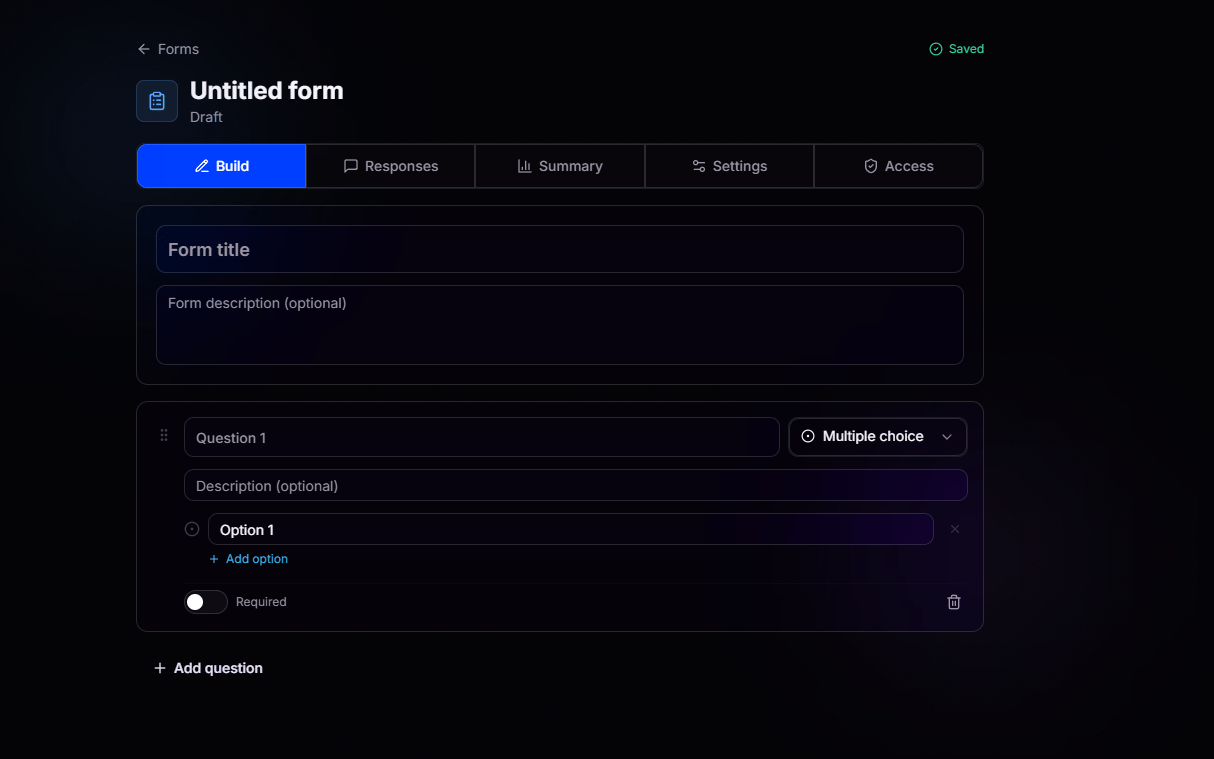 Add questions, choose types, mark them required. Every change autosaves.
Review individual submissions and export when you need the raw data.
Live aggregate view of every question, updated as responses come in.
Publishing, quiz mode, respondent requirements, and analytics toggles.
## Configure Every Detail
Tune each form to fit exactly how you want it to behave.
Toggle **Published** to open or close the form, flip **Accepting responses** to stop new submissions without unpublishing, and share the **Public link** with respondents.
Auto-score submissions. Mark correct answers on choice questions and assign point values, then let responses grade themselves as they roll in.
Flip on **Require login** to force respondents to sign in with BloxCord before they can submit.
Optionally collect respondent country and age group to enrich your results. Enable correlation insights to discover how different demographics and segments respond to each question.
Customize what respondents see the moment they hit submit.
Permanently delete the form and every response submitted to it. This one is final.
## Permissions That Fit Your Workflow
Decide exactly who can view, respond to, edit, configure, or analyze each form. Grant permissions to individual members or roles, while form owners and organization form administrators always retain full access.
Add questions, choose types, mark them required. Every change autosaves.
Review individual submissions and export when you need the raw data.
Live aggregate view of every question, updated as responses come in.
Publishing, quiz mode, respondent requirements, and analytics toggles.
## Configure Every Detail
Tune each form to fit exactly how you want it to behave.
Toggle **Published** to open or close the form, flip **Accepting responses** to stop new submissions without unpublishing, and share the **Public link** with respondents.
Auto-score submissions. Mark correct answers on choice questions and assign point values, then let responses grade themselves as they roll in.
Flip on **Require login** to force respondents to sign in with BloxCord before they can submit.
Optionally collect respondent country and age group to enrich your results. Enable correlation insights to discover how different demographics and segments respond to each question.
Customize what respondents see the moment they hit submit.
Permanently delete the form and every response submitted to it. This one is final.
## Permissions That Fit Your Workflow
Decide exactly who can view, respond to, edit, configure, or analyze each form. Grant permissions to individual members or roles, while form owners and organization form administrators always retain full access.
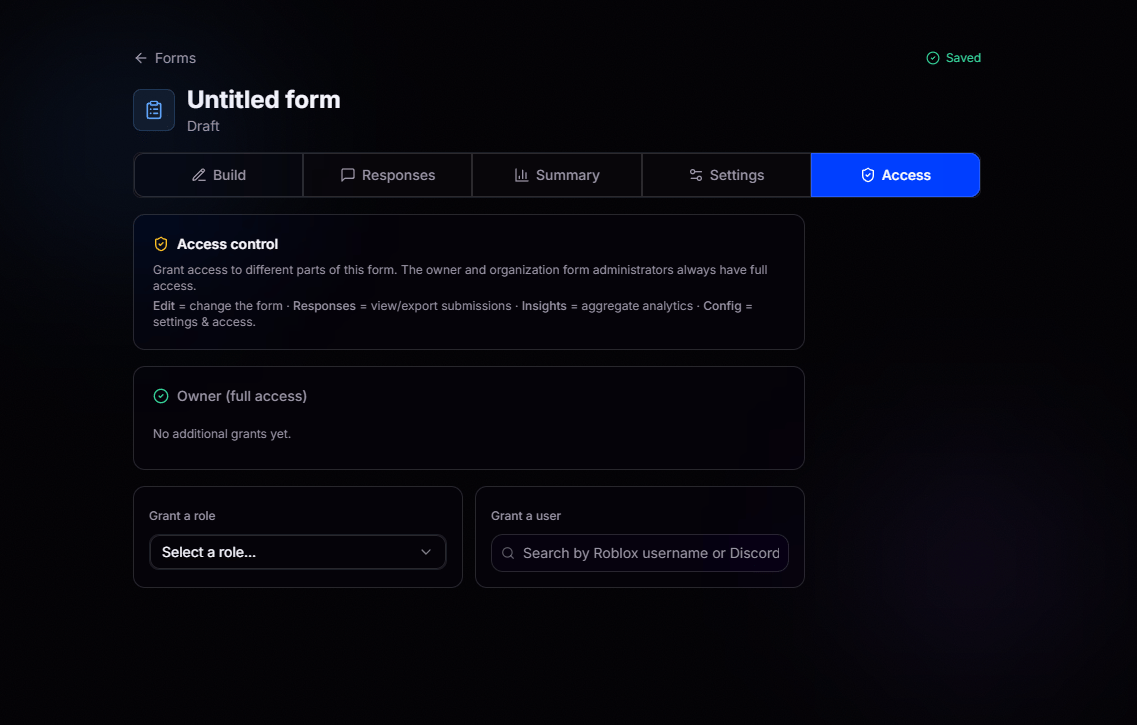 Change the form itself, questions, options, and structure.
View and export individual submissions.
See the aggregate analytics and summary.
Manage settings and access grants.
Change the form itself, questions, options, and structure.
View and export individual submissions.
See the aggregate analytics and summary.
Manage settings and access grants.