> ## Documentation Index
> Fetch the complete documentation index at: https://docs.bloxcord.net/llms.txt
> Use this file to discover all available pages before exploring further.
# Members
> Browse everyone in your organization and manage them with a single right-click.
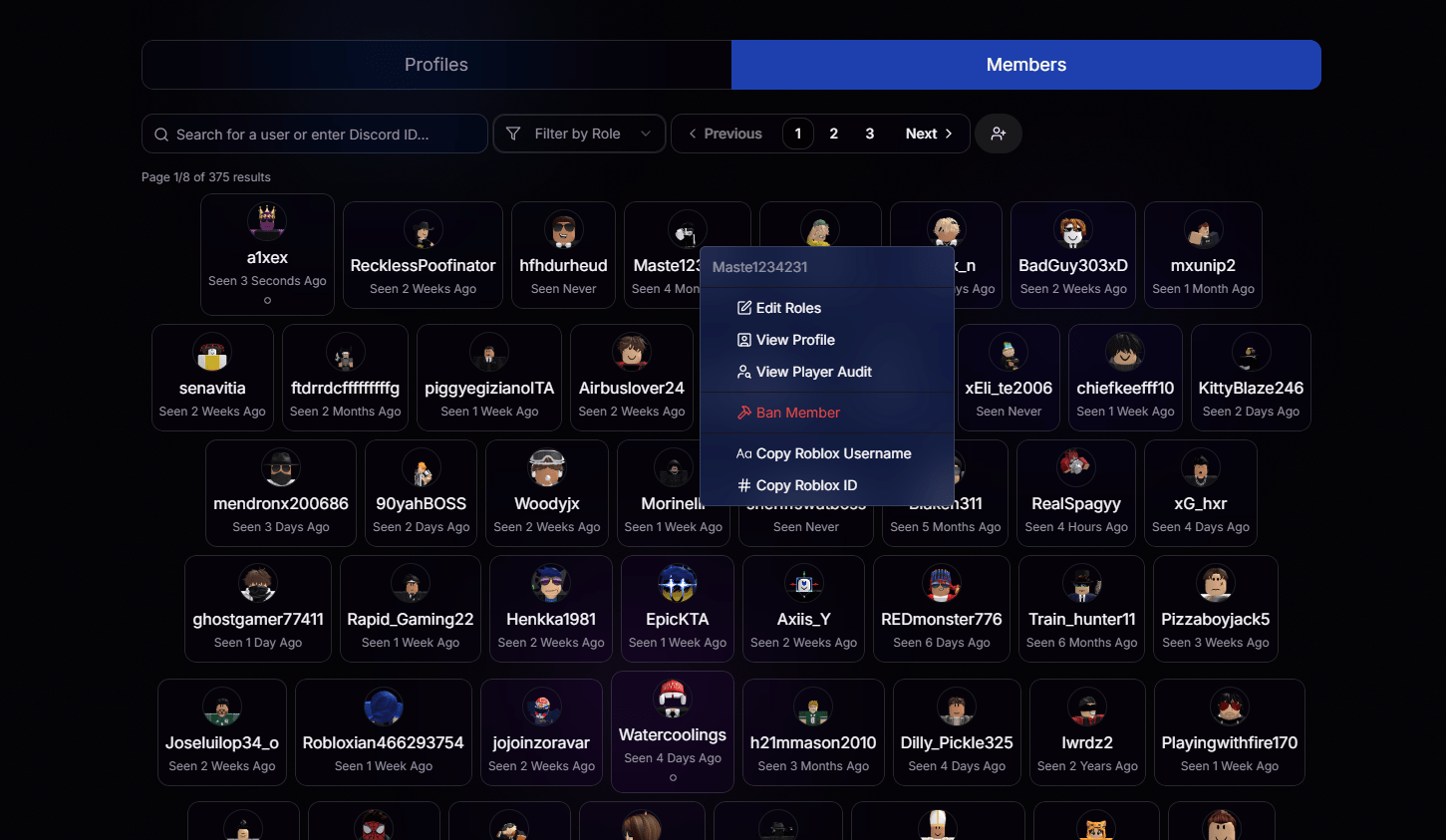 Type a username or paste a Discord ID to instantly narrow down the list.
Only see members with a specific role, perfect for staff-only views.
Every member in your organization is loaded and browsable, page by page.
See at a glance when each member was last active.
## Right-Click to Take Action
Right-click any member card to open the quick-action menu.
Update a member's roles without leaving the page.
Jump straight to their full dashboard profile.
Pull up their full Player Audit in one click.
Remove a member from your organization when needed.
Grab their exact username for pasting anywhere.
Copy their numeric Roblox ID in a single click.
Type a username or paste a Discord ID to instantly narrow down the list.
Only see members with a specific role, perfect for staff-only views.
Every member in your organization is loaded and browsable, page by page.
See at a glance when each member was last active.
## Right-Click to Take Action
Right-click any member card to open the quick-action menu.
Update a member's roles without leaving the page.
Jump straight to their full dashboard profile.
Pull up their full Player Audit in one click.
Remove a member from your organization when needed.
Grab their exact username for pasting anywhere.
Copy their numeric Roblox ID in a single click.