> ## Documentation Index
> Fetch the complete documentation index at: https://docs.bloxcord.net/llms.txt
> Use this file to discover all available pages before exploring further.
# ModCalls
> ModCalls is your moderator hotline. When a player requests staff in-game, the call appears instantly in BloxCord (and optionally Discord), where your team can claim it, join the session, replay what happened, and resolve the call all in one place.
Gameservers and Mod Calls must be enabled before moderation calls can be received or managed. Visit the Features tab to get started.
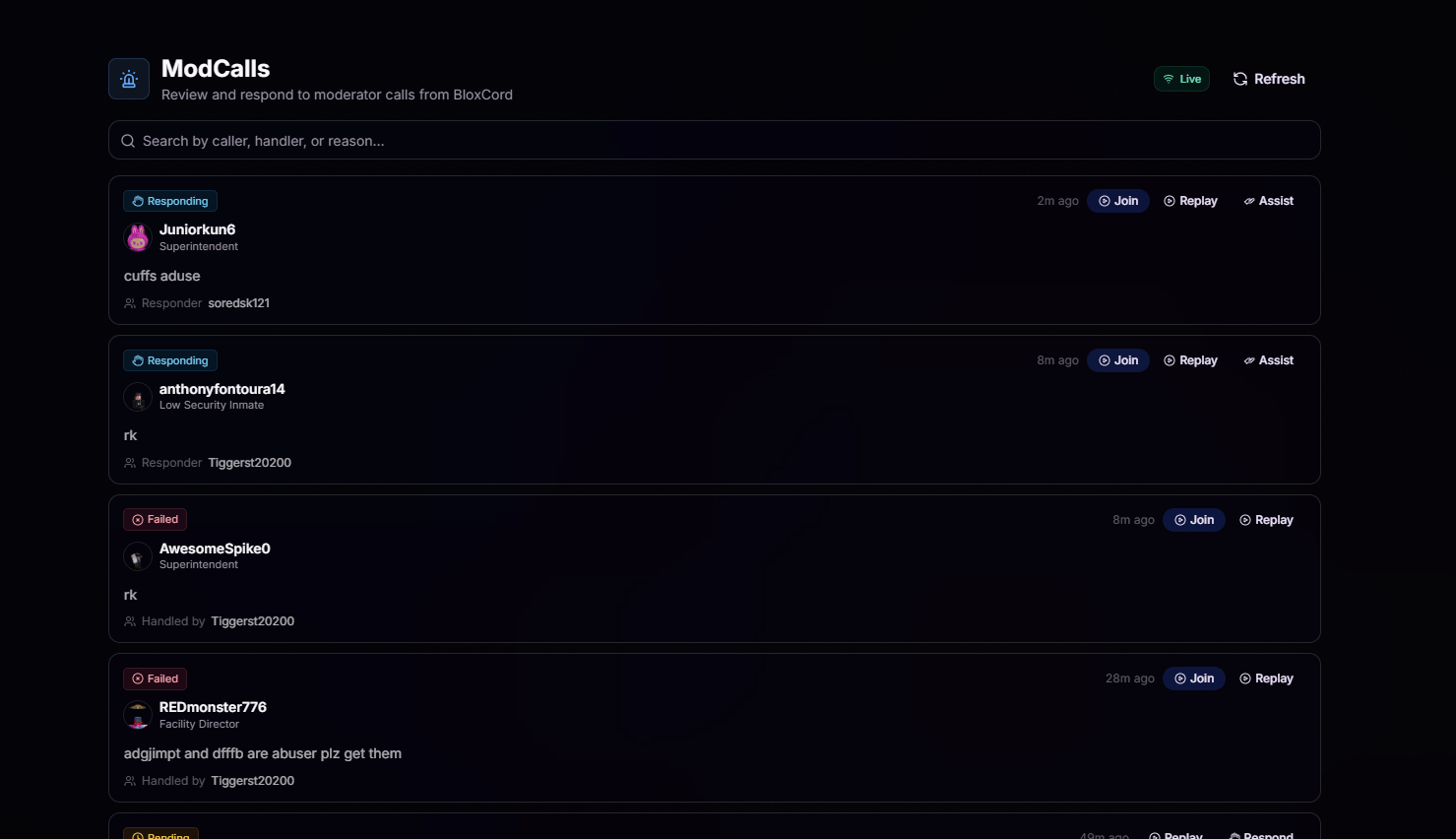 Members trigger a modcall in-game using the command you set up. A reason is attached so your team knows what they are walking into.
The call appears on the ModCalls tab live and (optionally) pings your Discord through a webhook so nobody misses it.
Authorized users can claim the call as the responder or join as an assistant. One click, no coordinating in DMs.
Every call is tied to a session replay. Jump straight into the moment it was made to see exactly what happened.
## Mod Call Details
Click any call to view its details, review what happened, respond or join as an assistant, and track its current status.
Members trigger a modcall in-game using the command you set up. A reason is attached so your team knows what they are walking into.
The call appears on the ModCalls tab live and (optionally) pings your Discord through a webhook so nobody misses it.
Authorized users can claim the call as the responder or join as an assistant. One click, no coordinating in DMs.
Every call is tied to a session replay. Jump straight into the moment it was made to see exactly what happened.
## Mod Call Details
Click any call to view its details, review what happened, respond or join as an assistant, and track its current status.
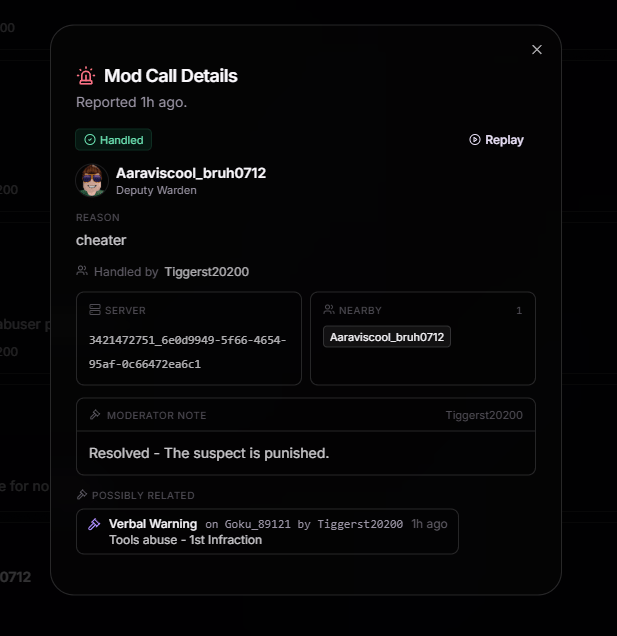 Open any call to see everything you need to respond quickly, including:
See who made the call, their rank, and the reason they submitted, no guessing.
The exact server ID plus a list of players nearby so you know where to go and who to ask.
Log the resolution or add context for the rest of the team once the call is handled.
Recent infractions or actions tied to the caller or involved users, surfaced automatically.
## Settings
Head to ModCall Settings to customize how calls are submitted, routed, and managed across your organization.
Open any call to see everything you need to respond quickly, including:
See who made the call, their rank, and the reason they submitted, no guessing.
The exact server ID plus a list of players nearby so you know where to go and who to ask.
Log the resolution or add context for the rest of the team once the call is handled.
Recent infractions or actions tied to the caller or involved users, surfaced automatically.
## Settings
Head to ModCall Settings to customize how calls are submitted, routed, and managed across your organization.
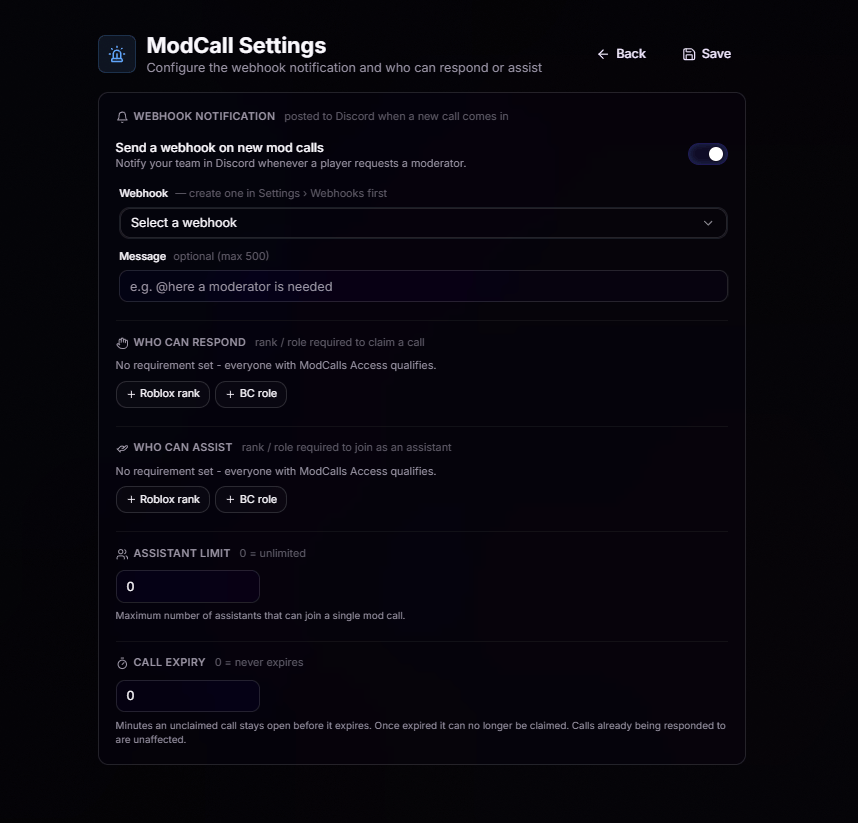 Toggle **Send a webhook on new mod calls** to notify your team in Discord whenever a player requests a moderator.
* **Webhook**: Pick from the webhooks you've created in **Settings › Webhooks**.
* **Message** (optional, max 500 chars): Add a custom message like `@here a moderator is needed` to make sure the right people see it.
Choose who can claim ModCalls. Leave this empty to allow anyone with ModCalls Access to claim calls, or require a specific Roblox rank or BloxCord role so only designated staff can take ownership.
Choose who can join a ModCall as an assistant. Leave this empty to allow anyone with ModCalls Access to assist, or require a specific Roblox rank or BloxCord role so only designated staff can join.
Set how many assistants can join a single ModCall. Use `0` for no limit, or set a maximum to keep responses focused and avoid overcrowding.
Set how many minutes an unclaimed ModCall remains open before it expires. Use `0` to disable expiration. Expired calls can no longer be claimed, but calls that have already been claimed are unaffected.
Toggle **Send a webhook on new mod calls** to notify your team in Discord whenever a player requests a moderator.
* **Webhook**: Pick from the webhooks you've created in **Settings › Webhooks**.
* **Message** (optional, max 500 chars): Add a custom message like `@here a moderator is needed` to make sure the right people see it.
Choose who can claim ModCalls. Leave this empty to allow anyone with ModCalls Access to claim calls, or require a specific Roblox rank or BloxCord role so only designated staff can take ownership.
Choose who can join a ModCall as an assistant. Leave this empty to allow anyone with ModCalls Access to assist, or require a specific Roblox rank or BloxCord role so only designated staff can join.
Set how many assistants can join a single ModCall. Use `0` for no limit, or set a maximum to keep responses focused and avoid overcrowding.
Set how many minutes an unclaimed ModCall remains open before it expires. Use `0` to disable expiration. Expired calls can no longer be claimed, but calls that have already been claimed are unaffected.