> ## Documentation Index
> Fetch the complete documentation index at: https://docs.bloxcord.net/llms.txt
> Use this file to discover all available pages before exploring further.
# Actions
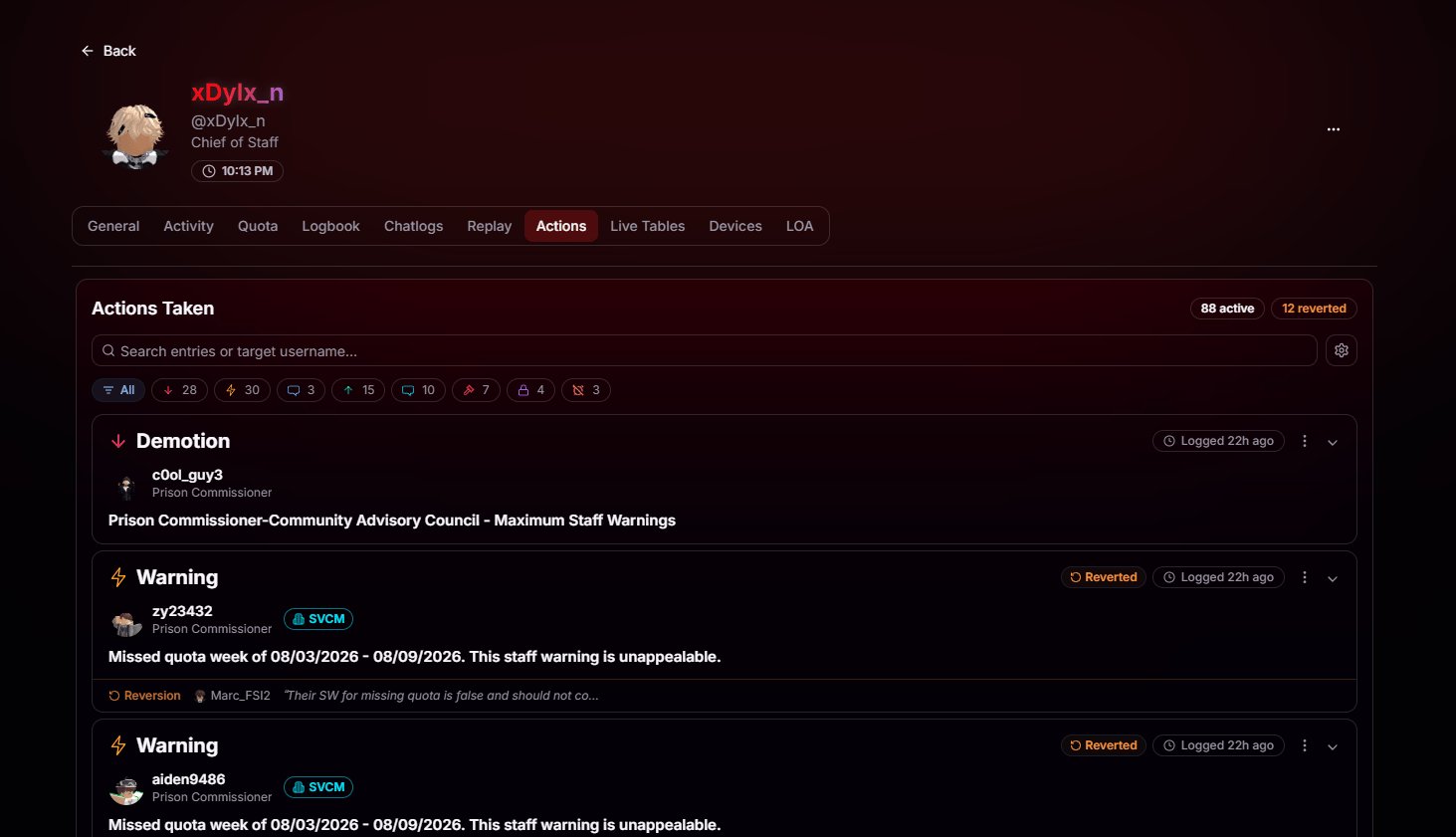
> The Actions tab shows every moderation action the player has taken on others, from warnings to game bans. Filter by action type, review who was affected, and see who authorized each action.
Logbook must be enabled before moderation entries can be created, viewed, or managed. Visit the Features tab to get started.
 ## Filter Every Action
Quickly find the actions you're looking for with filters and live search. Filter by action type or search by target username to review everything the player has done to a specific user.
Filter by punishment type with one-click chips for warnings, mutes, kicks, bans, and more. Each filter displays a live count, so you know exactly how many actions match.
Search by target username or keyword to instantly narrow the list to the actions you're looking for.
## Know the Status at a Glance
Every action includes a status indicator, so you can instantly see whether it's active, expired, or reverted.
## Full Context on Every Entry
Expand any action to see the full story behind it, from who authorized it to the exact reason it was issued.
See the target player, their role at the time, and the exact reason attached to the action.
Every entry shows who the action was carried out under, whether it was self-authorized or approved by a department.
Every action includes a status indicator, so you can instantly see whether it's active, expired, or reverted.
Duration, category, and any additional notes attached to the entry, so there's no ambiguity about what was issued.
## Filter Every Action
Quickly find the actions you're looking for with filters and live search. Filter by action type or search by target username to review everything the player has done to a specific user.
Filter by punishment type with one-click chips for warnings, mutes, kicks, bans, and more. Each filter displays a live count, so you know exactly how many actions match.
Search by target username or keyword to instantly narrow the list to the actions you're looking for.
## Know the Status at a Glance
Every action includes a status indicator, so you can instantly see whether it's active, expired, or reverted.
## Full Context on Every Entry
Expand any action to see the full story behind it, from who authorized it to the exact reason it was issued.
See the target player, their role at the time, and the exact reason attached to the action.
Every entry shows who the action was carried out under, whether it was self-authorized or approved by a department.
Every action includes a status indicator, so you can instantly see whether it's active, expired, or reverted.
Duration, category, and any additional notes attached to the entry, so there's no ambiguity about what was issued.