> ## Documentation Index
> Fetch the complete documentation index at: https://docs.bloxcord.net/llms.txt
> Use this file to discover all available pages before exploring further.
# Quota
> Know exactly where you stand at all times. View your rank, hosting, and department quotas side by side, complete with live progress, current status, and everything you need to stay on track.
Activity Quotas must be enabled before quota progress and statistics can be displayed. Visit the Features tab to get started.
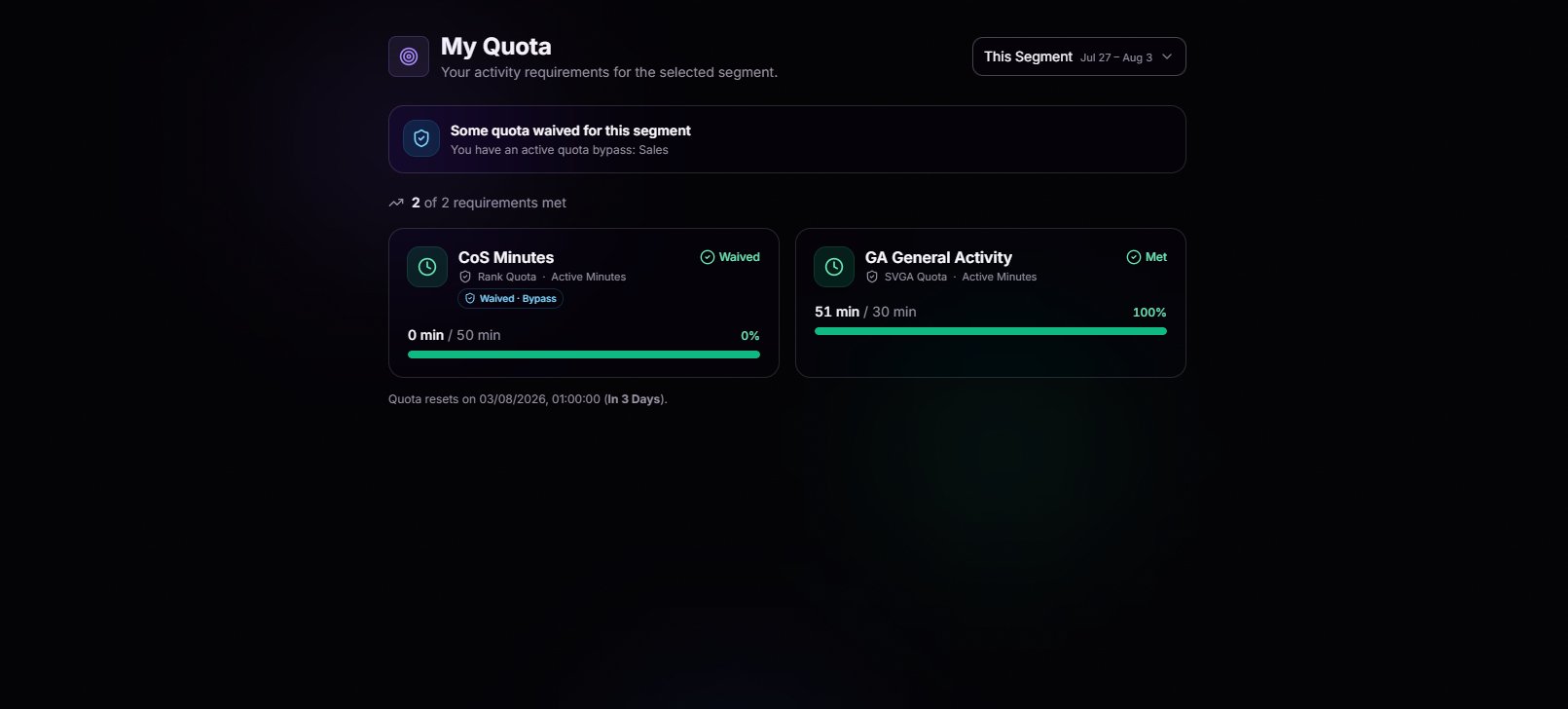 The baseline your rank is expected to meet. Active minutes, sessions, or whatever your group defines. Always visible, always current.
Training hosts, shift hosts, event hosts. If your role requires you to run things, this is where you'll see it tracked.
Belong to a special department? Your department's unique requirements show up here right next to everything else, no extra clicks.
Requirements that have been waived or bypassed are clearly labeled, making it easy to see which ones no longer count against you.
## Explore Past Segments
Need to review a previous segment? Use the segment filter in the top right to jump back in time and see exactly where you stood. Every requirement, logged minute, and approved bypass is preserved for a complete history.
Jump between "This Segment" and any past window with a single dropdown. Great for reviewing where you fell short so it doesn't happen twice.
Each segment preserves its progress, totals, and quota requirements, so your history stays accurate even if your quotas changes later.
## Segment Reset
Never lose track of a deadline. The footer beneath your requirements shows exactly when the current segment resets and how much time remains, so you always know how long you have left.
## Set the Standard
Quotas aren't just something members complete, they're something your leadership defines. Members with the appropriate organization permissions can configure rank, department, and hosting quotas, giving your organization complete control over what it means to stay active.
The baseline your rank is expected to meet. Active minutes, sessions, or whatever your group defines. Always visible, always current.
Training hosts, shift hosts, event hosts. If your role requires you to run things, this is where you'll see it tracked.
Belong to a special department? Your department's unique requirements show up here right next to everything else, no extra clicks.
Requirements that have been waived or bypassed are clearly labeled, making it easy to see which ones no longer count against you.
## Explore Past Segments
Need to review a previous segment? Use the segment filter in the top right to jump back in time and see exactly where you stood. Every requirement, logged minute, and approved bypass is preserved for a complete history.
Jump between "This Segment" and any past window with a single dropdown. Great for reviewing where you fell short so it doesn't happen twice.
Each segment preserves its progress, totals, and quota requirements, so your history stays accurate even if your quotas changes later.
## Segment Reset
Never lose track of a deadline. The footer beneath your requirements shows exactly when the current segment resets and how much time remains, so you always know how long you have left.
## Set the Standard
Quotas aren't just something members complete, they're something your leadership defines. Members with the appropriate organization permissions can configure rank, department, and hosting quotas, giving your organization complete control over what it means to stay active.
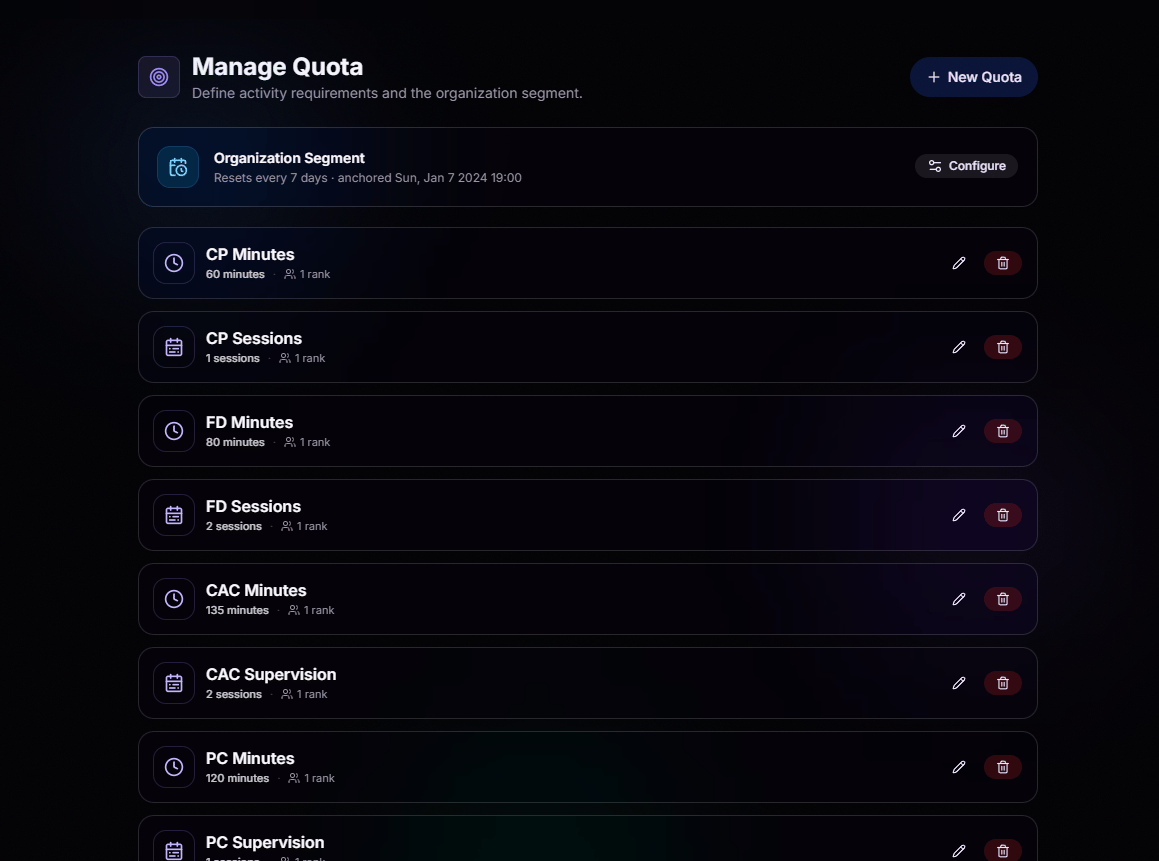 Requirements change over time. Update thresholds, rename quotas, or delete ones you no longer need, all without leaving BloxCord.
Define one quota schedule for your entire organization. Set weekly, biweekly, or monthly resets and choose the anchor date that works best for your team.
### Built Around Your Organization
Create custom quotas for any part of your organization. Choose what to track, set the requirement, and assign it to one or more ranks, departments, or BloxCord roles.
Requirements change over time. Update thresholds, rename quotas, or delete ones you no longer need, all without leaving BloxCord.
Define one quota schedule for your entire organization. Set weekly, biweekly, or monthly resets and choose the anchor date that works best for your team.
### Built Around Your Organization
Create custom quotas for any part of your organization. Choose what to track, set the requirement, and assign it to one or more ranks, departments, or BloxCord roles.
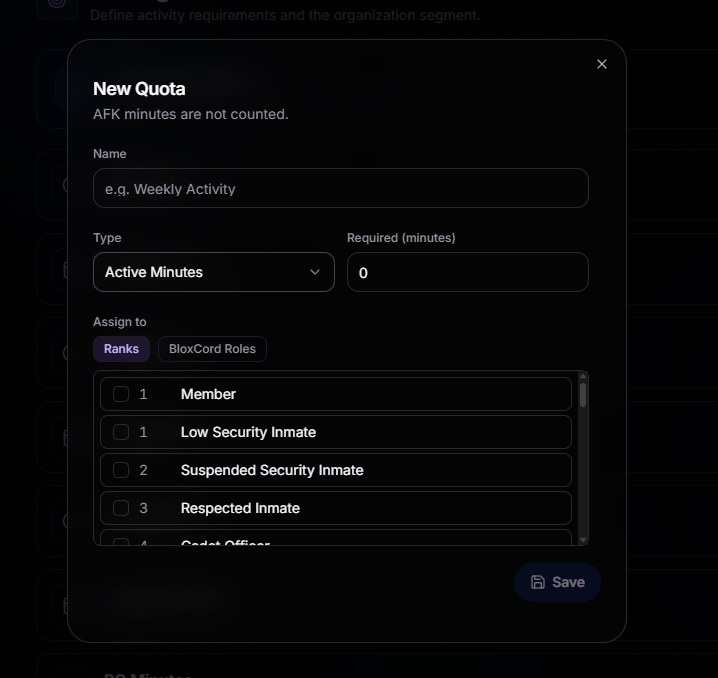 Give your quota a clear name, choose what to measure, and set the required amount. Members automatically see the updated requirements as soon as you save.
Assign quotas by rank, department, or BloxCord role. Multi-select support lets you apply a single requirement to multiple groups without creating duplicate quotas.
AFK time is automatically excluded from activity tracking, ensuring members are only credited for time they're actively participating.
Whether you measure active minutes, sessions, hosting, messages, punishments, or something entirely unique, BloxCord lets you build a quota system around what matters to your organization.
## Grant Bypasses in One Click
When a member shouldn't be held to a requirement, simply waive it. No manual tracking or messy spreadsheets required.
Give your quota a clear name, choose what to measure, and set the required amount. Members automatically see the updated requirements as soon as you save.
Assign quotas by rank, department, or BloxCord role. Multi-select support lets you apply a single requirement to multiple groups without creating duplicate quotas.
AFK time is automatically excluded from activity tracking, ensuring members are only credited for time they're actively participating.
Whether you measure active minutes, sessions, hosting, messages, punishments, or something entirely unique, BloxCord lets you build a quota system around what matters to your organization.
## Grant Bypasses in One Click
When a member shouldn't be held to a requirement, simply waive it. No manual tracking or messy spreadsheets required.
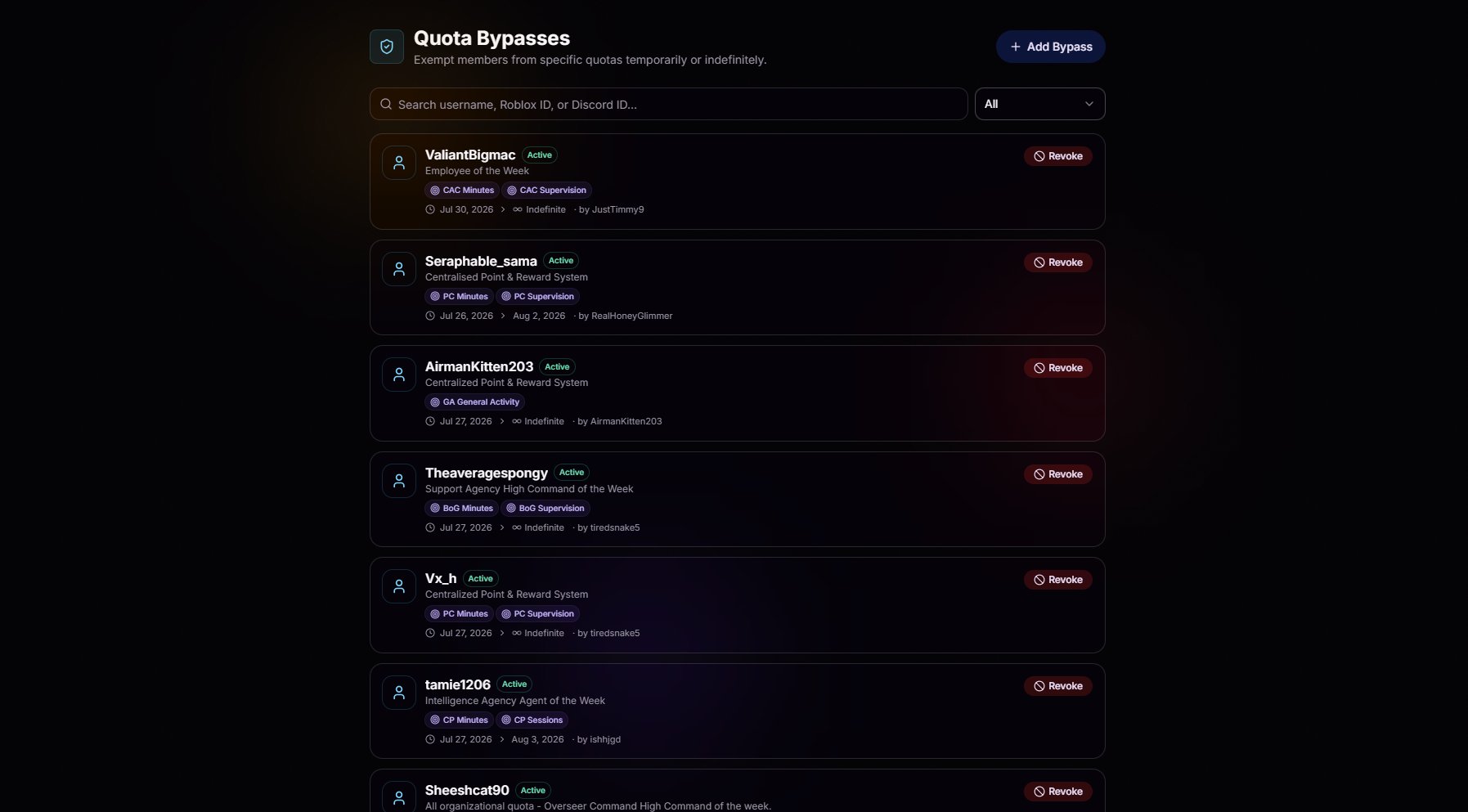 Hit **Add Bypass**, pick a member, and they're excused. No forms to fill out, no approvals to chase, no manual tracking. Just a clean way to say "you're covered."
Grant a bypass for a set window with start and end dates, or make it indefinite for permanent exemptions like retired members or special roles.
Bypass one quota, several, or all of them. Full control, per member.
Changed your mind or the situation changed? Revoke any bypass with one click and the member is back on the standard immediately.
Hit **Add Bypass**, pick a member, and they're excused. No forms to fill out, no approvals to chase, no manual tracking. Just a clean way to say "you're covered."
Grant a bypass for a set window with start and end dates, or make it indefinite for permanent exemptions like retired members or special roles.
Bypass one quota, several, or all of them. Full control, per member.
Changed your mind or the situation changed? Revoke any bypass with one click and the member is back on the standard immediately.