> ## Documentation Index
> Fetch the complete documentation index at: https://docs.bloxcord.net/llms.txt
> Use this file to discover all available pages before exploring further.
# Rules
> A consistent team starts with consistent rules. Build your rulebook once, categorize it however you like, and ensure every moderator handles situations the same way.
Group Rules must be enabled before rules can be created, managed, or enforced. Visit the Features tab to get started.
 ## Categorize Your Way
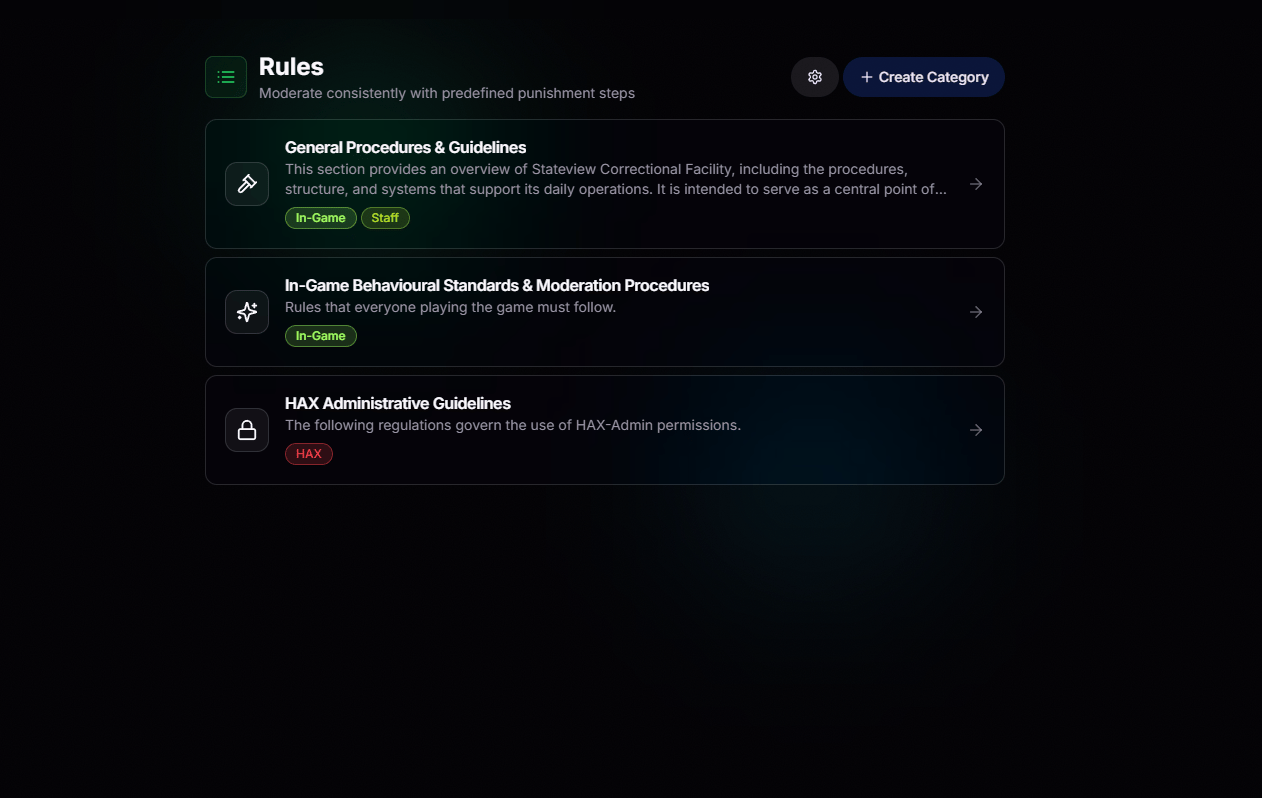
Organize your rulebook however your organization operates. Create categories for in-game offenses, Discord conduct, department-specific policies, staff standards, or anything else your team needs. Every category includes its own icon, description, and labels, making it easy for moderators to find the right rule in seconds.
## Categorize Your Way
Organize your rulebook however your organization operates. Create categories for in-game offenses, Discord conduct, department-specific policies, staff standards, or anything else your team needs. Every category includes its own icon, description, and labels, making it easy for moderators to find the right rule in seconds.
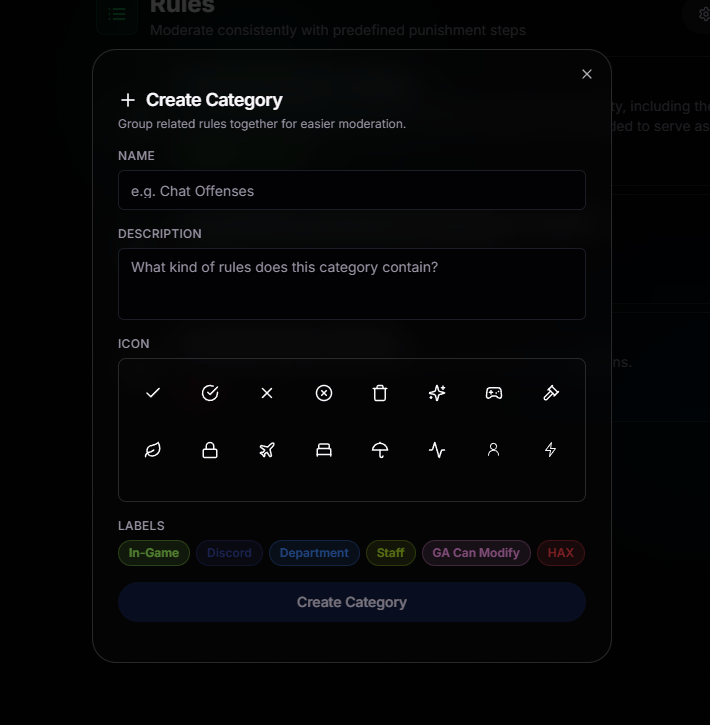 Name, describe, and icon each category so the rulebook mirrors how your team actually thinks about offenses.
Tag rules with labels like In-Game, Discord, Department, Staff, and more to help moderators quickly find the guidance they need.
Refine your rulebook even further. Apply tags to individual rules so moderators can quickly filter down to the exact offense they're looking for.Permission-locked
Categories respect your permission tree. If a member cannot moderate a scope, they cannot view or edit the rules inside it.
## Every Rule, Fully Defined
Open any rule to see exactly what it covers, who created it, and the disciplinary ladder your moderators are expected to follow. No more guessing whether an offense starts with a tool ban or goes straight to a game ban.
Name, describe, and icon each category so the rulebook mirrors how your team actually thinks about offenses.
Tag rules with labels like In-Game, Discord, Department, Staff, and more to help moderators quickly find the guidance they need.
Refine your rulebook even further. Apply tags to individual rules so moderators can quickly filter down to the exact offense they're looking for.Permission-locked
Categories respect your permission tree. If a member cannot moderate a scope, they cannot view or edit the rules inside it.
## Every Rule, Fully Defined
Open any rule to see exactly what it covers, who created it, and the disciplinary ladder your moderators are expected to follow. No more guessing whether an offense starts with a tool ban or goes straight to a game ban.
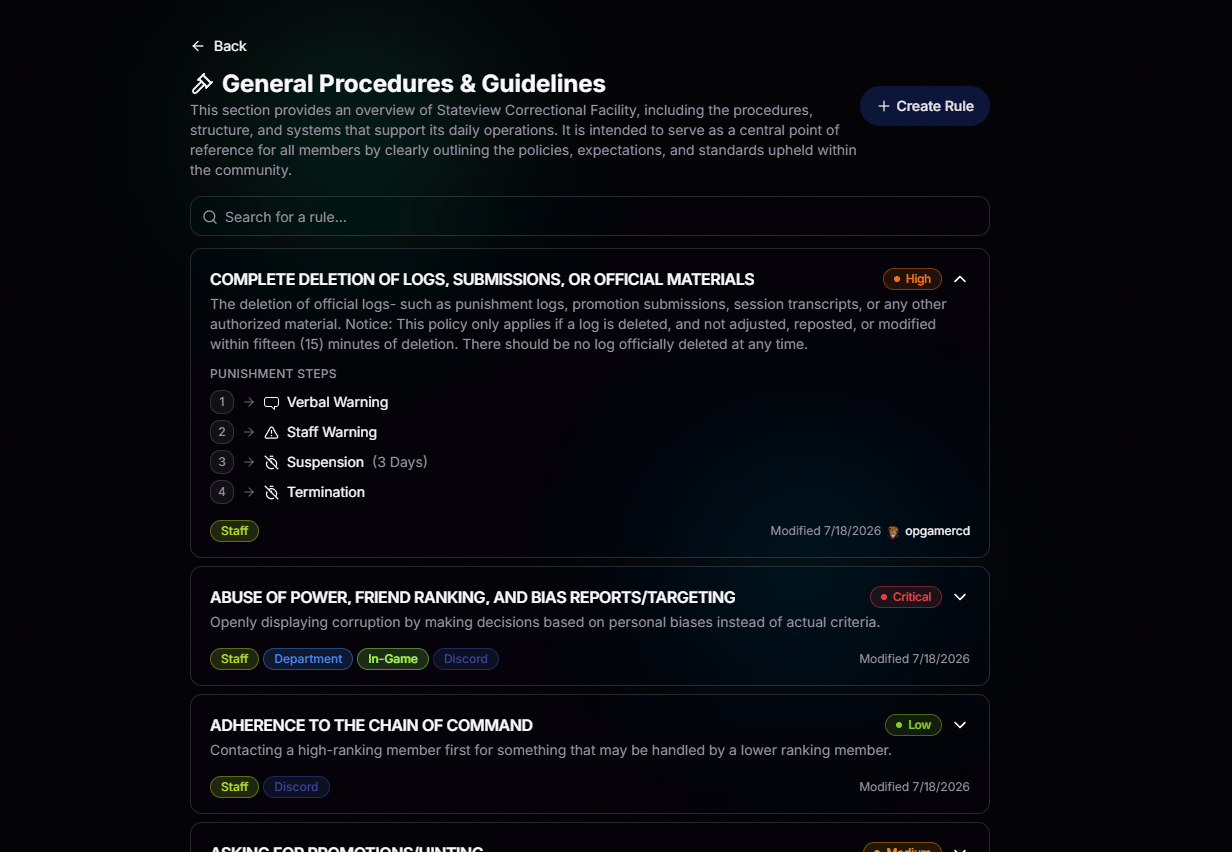 Verbal Warning, Staff Warning, Suspension, Termination, or any custom ladder. Steps escalate automatically as offenses stack.
Assign every rule a severity level, from Very Low to Critical. A color-coded tag helps moderators instantly understand how seriously each offense should be treated.
Every rule shows who last modified it and when, making it easy to track changes and maintain accountability across your team.
Tag rules with labels like Staff, Department, In-Game, Discord, and more. Search and filter your rulebook in seconds.
## Build Rules Your Way
Build a rule from a single streamlined form. Give it a name and description, assign a severity, define each disciplinary step with its type and duration, and add the labels that organize it. Every action is clearly documented, so moderators always know exactly how to enforce it.
Verbal Warning, Staff Warning, Suspension, Termination, or any custom ladder. Steps escalate automatically as offenses stack.
Assign every rule a severity level, from Very Low to Critical. A color-coded tag helps moderators instantly understand how seriously each offense should be treated.
Every rule shows who last modified it and when, making it easy to track changes and maintain accountability across your team.
Tag rules with labels like Staff, Department, In-Game, Discord, and more. Search and filter your rulebook in seconds.
## Build Rules Your Way
Build a rule from a single streamlined form. Give it a name and description, assign a severity, define each disciplinary step with its type and duration, and add the labels that organize it. Every action is clearly documented, so moderators always know exactly how to enforce it.
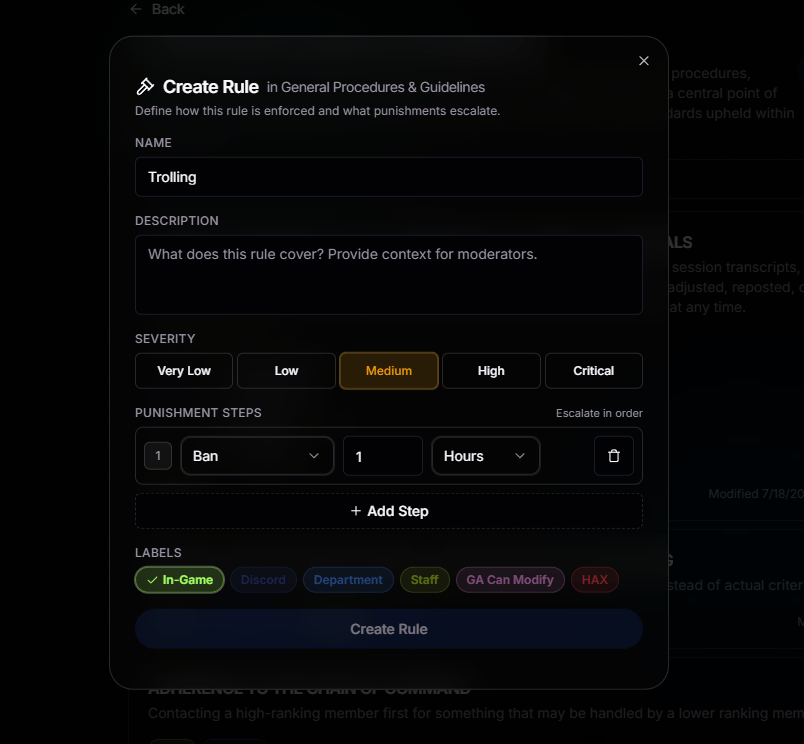 Write a rule once, and every moderator sees the same guidance whenever they open it.
Choose the action, such as Ban, Warning, or Suspension, then set its duration and time unit. Add as many disciplinary steps as your organization requires.
Assign the appropriate severity to every rule so moderators can quickly recognize the right response for the offense.
Assign labels like In-Game, Discord, and Staff to scope each rule to the appropriate moderation area.
## Attach Rules When You Punish
The rulebook does more than document your policies. When a moderator issues a punishment, they can attach the matching rule to the log, and BloxCord automatically applies the next step in the disciplinary ladder. If a member reaches their third offense under the same rule, BloxCord already knows to escalate the punishment to whatever **you** decided.
Choose a rule during the punishment workflow, and BloxCord automatically fills in its disciplinary ladder.
BloxCord tracks prior offenses for every rule and automatically applies the next step in the disciplinary ladder. No manual tracking or counting required.
Write a rule once, and every moderator sees the same guidance whenever they open it.
Choose the action, such as Ban, Warning, or Suspension, then set its duration and time unit. Add as many disciplinary steps as your organization requires.
Assign the appropriate severity to every rule so moderators can quickly recognize the right response for the offense.
Assign labels like In-Game, Discord, and Staff to scope each rule to the appropriate moderation area.
## Attach Rules When You Punish
The rulebook does more than document your policies. When a moderator issues a punishment, they can attach the matching rule to the log, and BloxCord automatically applies the next step in the disciplinary ladder. If a member reaches their third offense under the same rule, BloxCord already knows to escalate the punishment to whatever **you** decided.
Choose a rule during the punishment workflow, and BloxCord automatically fills in its disciplinary ladder.
BloxCord tracks prior offenses for every rule and automatically applies the next step in the disciplinary ladder. No manual tracking or counting required.