> ## Documentation Index
> Fetch the complete documentation index at: https://docs.bloxcord.net/llms.txt
> Use this file to discover all available pages before exploring further.
# Configuration
> This is where BloxCord Sessions stops feeling like a tool and starts feeling like your tool. Every tab in Session Settings unlocks another layer of control.
### General
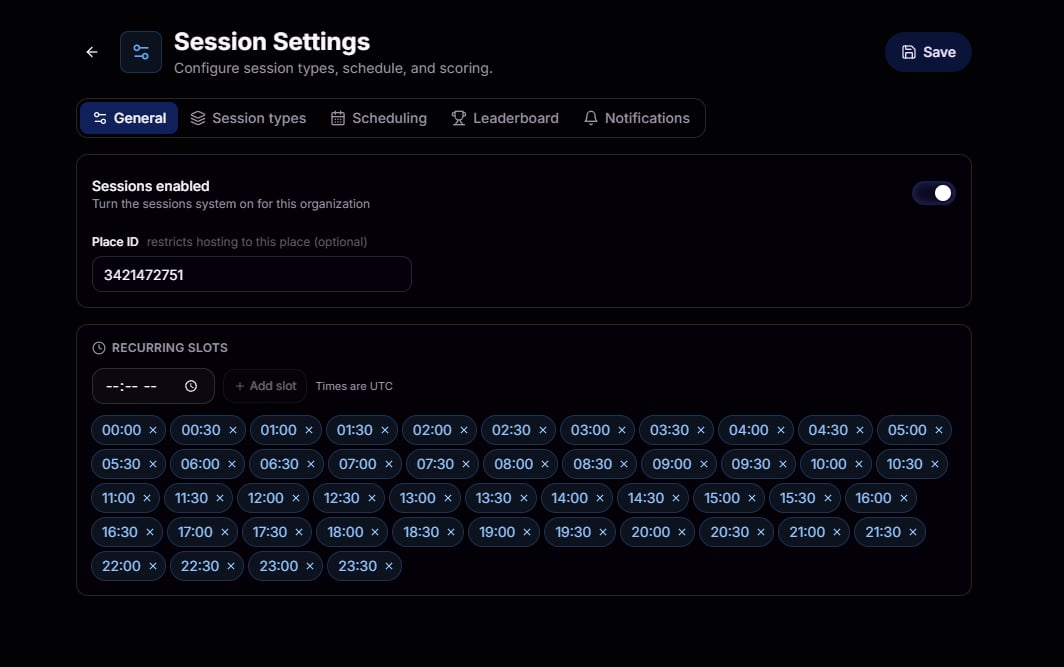
Turn on sessions with a single toggle, optionally restrict them to a specific Roblox place ID, and create recurring reservation slots that automatically fill your calendar with your organization's regular session schedule. Recurring slots appear on the calendar for members to reserve, so you don't have to recreate the same sessions every week. Set them to repeat as often or as little as you need, and create as many recurring slots as your organization requires.
 ### Session Types
The heart of Sessions. Create unlimited session types, each with its own attendee requirements, phase flow, reservation rules, and leaderboard weight. Every knob in the editor exists so you can shape a type to match exactly how your organization actually runs it.
### Session Types
The heart of Sessions. Create unlimited session types, each with its own attendee requirements, phase flow, reservation rules, and leaderboard weight. Every knob in the editor exists so you can shape a type to match exactly how your organization actually runs it.
 #### Attendee Settings
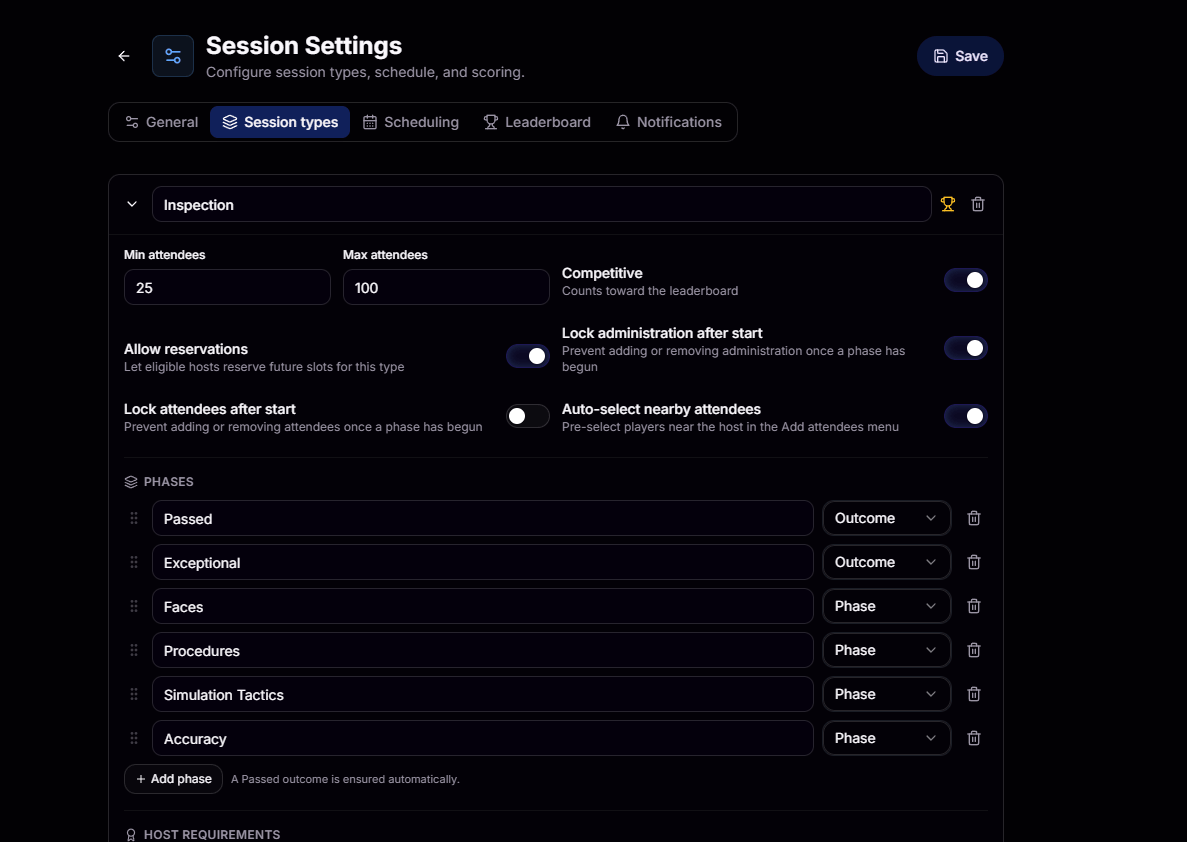
Set the minimum and maximum number of attendees for this session type, and choose how attendees are managed once the session begins.
The minimum number of attendees required before this session can begin. Hosts cannot start the session until this requirement is met.
The maximum number of attendees allowed for this session type. Once the limit is reached, no additional attendees can join.
Prevent attendees from being added or removed once the session begins. Ideal for tryouts, exams, certifications, or any session where the roster should remain fixed after it starts.
Automatically pre-select players near the host in the Add Attendees menu, making it easy to add everyone nearby with a single click instead of searching through the full player list.
Marks this session type as competitive. Competitive sessions contribute to leaderboard rankings using the scoring rules you configure later. Leave this disabled for casual, training, or non-scored events.
Allow eligible hosts to reserve future sessions of this type on the calendar. Disable this for on-demand session types that should only be created when needed and never scheduled in advance.
Prevent administrators, co-hosts, and other staff from being added or removed once the session begins. Ideal for sessions where the staff roster should remain fixed after the session goes live.
#### Phases & Outcomes
Every session type follows a customizable flow. Drag and drop phases into any order, assign their purpose, and mix built-in results with your own custom phases.
A phase is a step in the session workflow. Phases represent the stages hosts move through, such as Warmup, Drill 1, Drill 2, or Interview. Add as many phases as needed and arrange them in any order.
A result is the outcome assigned to an attendee when the session ends. Passed is built in and is automatically applied to attendees who complete the session successfully. Create additional results like Failed, Excused, No Show, Reserved, or any other outcome your organization needs.
#### Host Requirements
Control who is eligible to host this session type. Combine any number of Roblox rank and BloxCord role requirements, and a user can host as long as they satisfy the rules you define.
Require a minimum Roblox group rank to host this session type. Use `≥` to allow anyone at or above the selected rank, such as Prison Commissioner (#17) or higher.
Require one or more BloxCord roles to host this session type. Use role requirements on their own or combine them with Roblox rank requirements for more precise access control.
#### Administration Roles
Staff roles define the team that assists the host during a session. Create roles like Manager, Supervisor, Observer, or any others your organization uses, then configure how many are needed and who qualifies for each one.
Set the minimum and maximum number of people who can fill this staff role for a session. Sessions cannot begin until the minimum requirement for every administration role has been met.
Allow members in this role to manage the session. Managers can start and end sessions, control session state, and edit phases, while non-manager roles can assist without having those permissions.
Use the same qualification system as Host Requirements to control who can fill this administration role. Require a Roblox group rank, BloxCord role, or any combination of both.
Create as many administration roles as your organization needs. Every role has its own minimum and maximum staffing, manager permission, and qualification requirements.
#### Requirement Overrides
Override the default staffing requirements for qualified hosts. If a host matches an override, the lowest minimum and highest maximum from all matching overrides are used, allowing staffing requirements to be relaxed without ever making them stricter.
Choose which hosts this override applies to. Require a Roblox group rank, BloxCord role, or both. Leave the requirements empty to apply the override to every host.
Override the minimum and maximum staffing for individual administration roles. Relax requirements for qualified hosts by lowering minimums, raising maximums, or both, on a role-by-role basis.
Add as many role adjustments as needed to a single override. One override can relax the staffing requirements for multiple administration roles at the same time.
Create as many override rules as your organization needs. Different groups of hosts can each have their own staffing relaxations, and BloxCord automatically applies the most generous minimum and maximum values from every matching rule.
#### Promotions
Automatically promote attendees who achieve a qualifying result when the session ends. Promotions are applied directly through BloxCord with no manual rank changes required.
Automatically promote attendees who achieve a qualifying result when the session ends. Disabled by default to prevent accidental promotions.
Set the highest Roblox group rank BloxCord can promote attendees to for this session type. Promotions will never go beyond this limit, even if an attendee would otherwise qualify for a higher rank.
Control who is allowed to promote attendees for this session type. Combine any number of Roblox rank and BloxCord role requirements, and a host can promote as long as they satisfy the rules you define.
Only attendees who finish the session with a qualifying result are eligible for promotion. Everyone else is automatically skipped.
### Scheduling
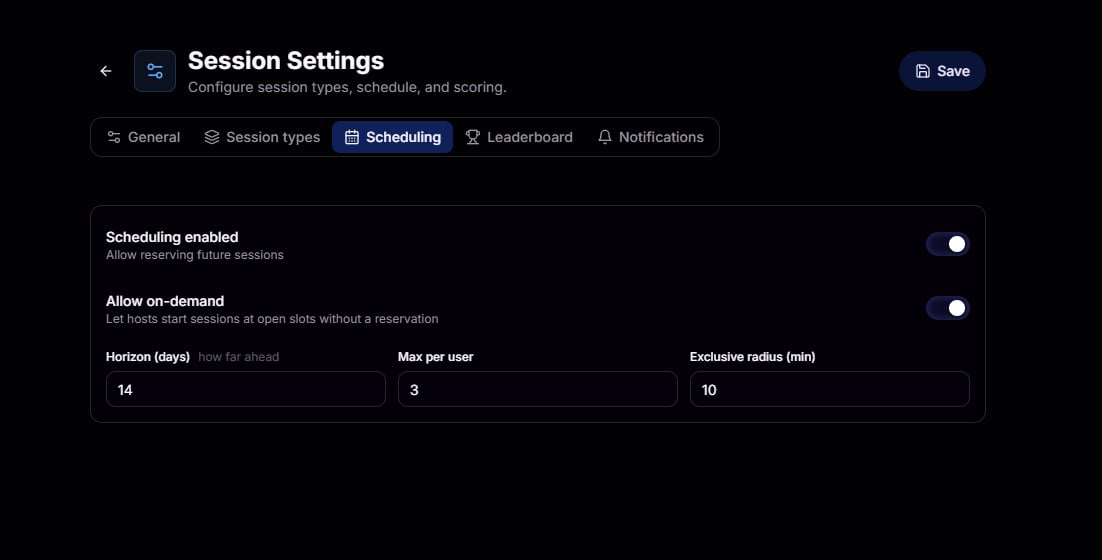
Decide how far ahead members can reserve, how many reservations each host can hold, and how much breathing room to leave between exclusive sessions. Or turn on on-demand and let hosts start whenever they want.
#### Attendee Settings
Set the minimum and maximum number of attendees for this session type, and choose how attendees are managed once the session begins.
The minimum number of attendees required before this session can begin. Hosts cannot start the session until this requirement is met.
The maximum number of attendees allowed for this session type. Once the limit is reached, no additional attendees can join.
Prevent attendees from being added or removed once the session begins. Ideal for tryouts, exams, certifications, or any session where the roster should remain fixed after it starts.
Automatically pre-select players near the host in the Add Attendees menu, making it easy to add everyone nearby with a single click instead of searching through the full player list.
Marks this session type as competitive. Competitive sessions contribute to leaderboard rankings using the scoring rules you configure later. Leave this disabled for casual, training, or non-scored events.
Allow eligible hosts to reserve future sessions of this type on the calendar. Disable this for on-demand session types that should only be created when needed and never scheduled in advance.
Prevent administrators, co-hosts, and other staff from being added or removed once the session begins. Ideal for sessions where the staff roster should remain fixed after the session goes live.
#### Phases & Outcomes
Every session type follows a customizable flow. Drag and drop phases into any order, assign their purpose, and mix built-in results with your own custom phases.
A phase is a step in the session workflow. Phases represent the stages hosts move through, such as Warmup, Drill 1, Drill 2, or Interview. Add as many phases as needed and arrange them in any order.
A result is the outcome assigned to an attendee when the session ends. Passed is built in and is automatically applied to attendees who complete the session successfully. Create additional results like Failed, Excused, No Show, Reserved, or any other outcome your organization needs.
#### Host Requirements
Control who is eligible to host this session type. Combine any number of Roblox rank and BloxCord role requirements, and a user can host as long as they satisfy the rules you define.
Require a minimum Roblox group rank to host this session type. Use `≥` to allow anyone at or above the selected rank, such as Prison Commissioner (#17) or higher.
Require one or more BloxCord roles to host this session type. Use role requirements on their own or combine them with Roblox rank requirements for more precise access control.
#### Administration Roles
Staff roles define the team that assists the host during a session. Create roles like Manager, Supervisor, Observer, or any others your organization uses, then configure how many are needed and who qualifies for each one.
Set the minimum and maximum number of people who can fill this staff role for a session. Sessions cannot begin until the minimum requirement for every administration role has been met.
Allow members in this role to manage the session. Managers can start and end sessions, control session state, and edit phases, while non-manager roles can assist without having those permissions.
Use the same qualification system as Host Requirements to control who can fill this administration role. Require a Roblox group rank, BloxCord role, or any combination of both.
Create as many administration roles as your organization needs. Every role has its own minimum and maximum staffing, manager permission, and qualification requirements.
#### Requirement Overrides
Override the default staffing requirements for qualified hosts. If a host matches an override, the lowest minimum and highest maximum from all matching overrides are used, allowing staffing requirements to be relaxed without ever making them stricter.
Choose which hosts this override applies to. Require a Roblox group rank, BloxCord role, or both. Leave the requirements empty to apply the override to every host.
Override the minimum and maximum staffing for individual administration roles. Relax requirements for qualified hosts by lowering minimums, raising maximums, or both, on a role-by-role basis.
Add as many role adjustments as needed to a single override. One override can relax the staffing requirements for multiple administration roles at the same time.
Create as many override rules as your organization needs. Different groups of hosts can each have their own staffing relaxations, and BloxCord automatically applies the most generous minimum and maximum values from every matching rule.
#### Promotions
Automatically promote attendees who achieve a qualifying result when the session ends. Promotions are applied directly through BloxCord with no manual rank changes required.
Automatically promote attendees who achieve a qualifying result when the session ends. Disabled by default to prevent accidental promotions.
Set the highest Roblox group rank BloxCord can promote attendees to for this session type. Promotions will never go beyond this limit, even if an attendee would otherwise qualify for a higher rank.
Control who is allowed to promote attendees for this session type. Combine any number of Roblox rank and BloxCord role requirements, and a host can promote as long as they satisfy the rules you define.
Only attendees who finish the session with a qualifying result are eligible for promotion. Everyone else is automatically skipped.
### Scheduling
Decide how far ahead members can reserve, how many reservations each host can hold, and how much breathing room to leave between exclusive sessions. Or turn on on-demand and let hosts start whenever they want.
 ### Leaderboard Weights
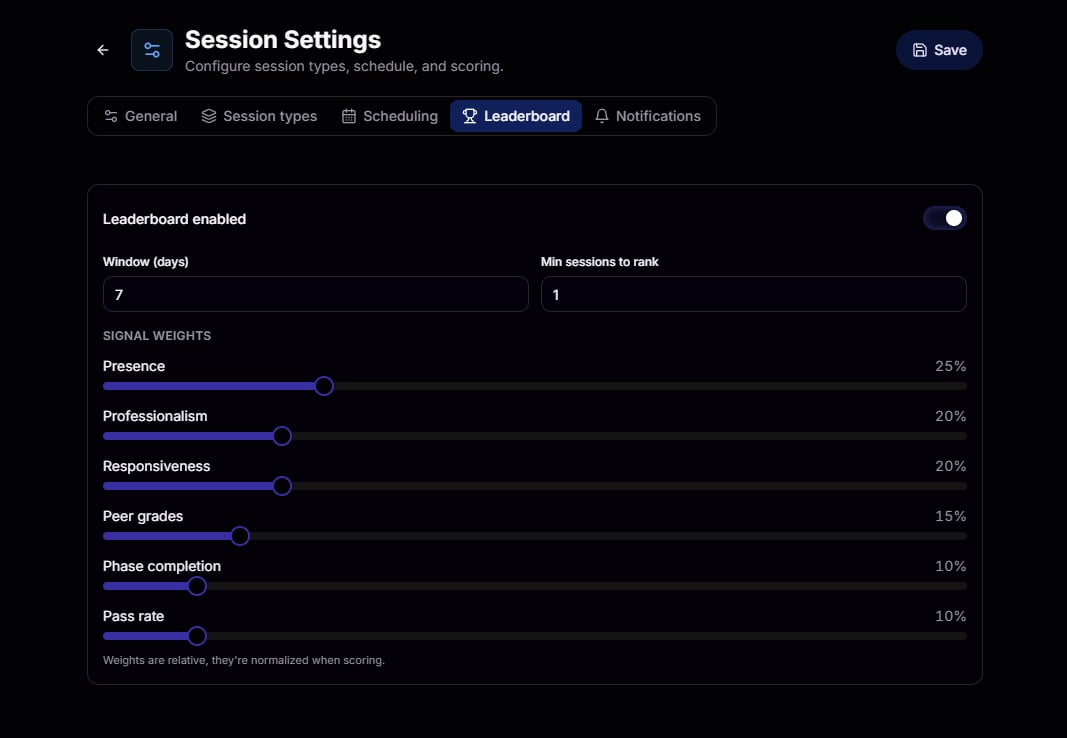
This is the setting that separates BloxCord from every other session system. Tune the exact signals that define a great host for *your* organization. Presence, professionalism, responsiveness, peer grades, phase completion, pass rate. Slide the weights until they match your standards.
### Leaderboard Weights
This is the setting that separates BloxCord from every other session system. Tune the exact signals that define a great host for *your* organization. Presence, professionalism, responsiveness, peer grades, phase completion, pass rate. Slide the weights until they match your standards.
 ### Notifications
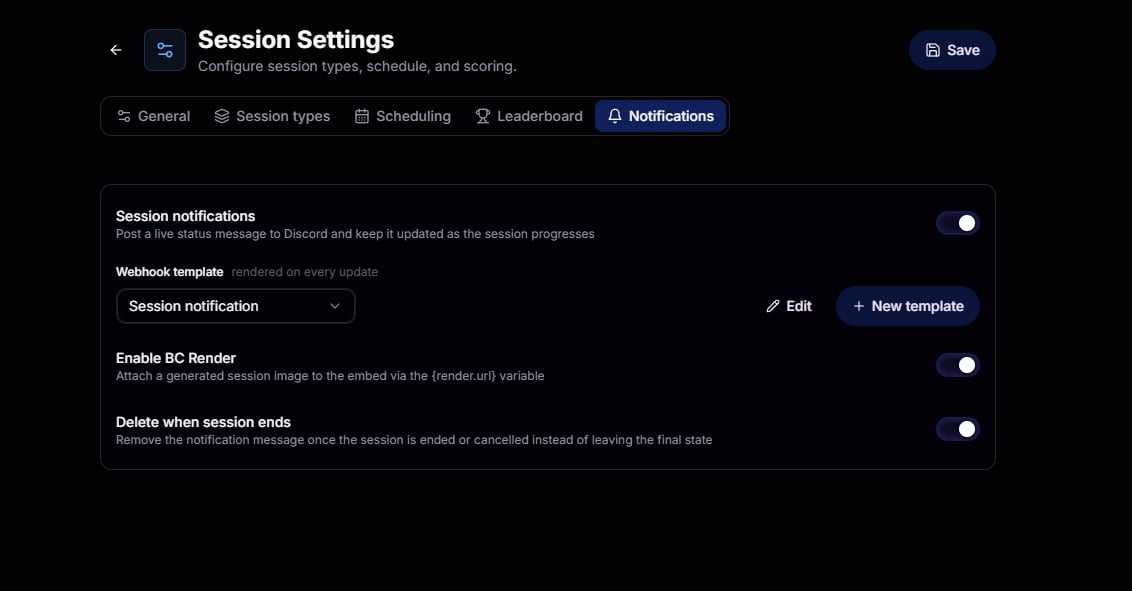
Post a live status message to Discord and keep it updated as the session progresses. Attach an auto-generated session image, use a fully customizable webhook template, and choose whether the message sticks around or cleans itself up when the session ends.
### Notifications
Post a live status message to Discord and keep it updated as the session progresses. Attach an auto-generated session image, use a fully customizable webhook template, and choose whether the message sticks around or cleans itself up when the session ends.