> ## Documentation Index
> Fetch the complete documentation index at: https://docs.bloxcord.net/llms.txt
> Use this file to discover all available pages before exploring further.
# General
> The heart of your organization. Configure your organization's name, icon, and essential settings from one place, making it easy to keep everything up to date.
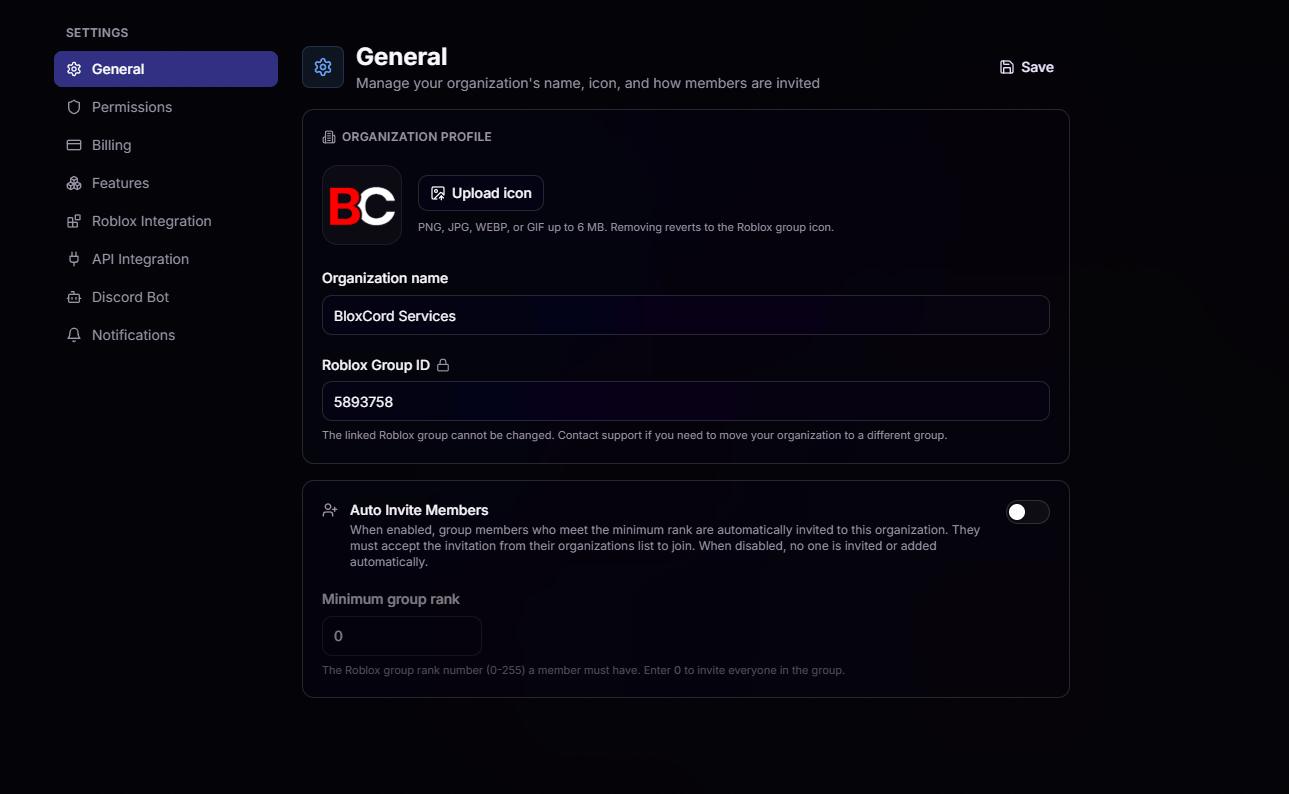 Upload a custom PNG, JPG, WEBP, or GIF up to 6 MB. Remove it anytime to fall back to your Roblox group icon.
Rename your organization whenever it evolves. Changes are instant across BloxCord.
## Roblox Group ID
Your Roblox Group ID is permanently linked to your organization and cannot be changed from the dashboard. This keeps your members, ranks, and permissions tied to the right group with zero risk of accidental swaps.
Need to move your organization to a different Roblox group? Reach out to support and we'll handle the migration for you.
## Auto Invite Members
Skip the manual onboarding. Turn on **Auto Invite Members** and BloxCord will automatically send invitations to anyone in your Roblox group who meets the minimum rank you set.
Choose a minimum group rank between 0 and 255. Enter **0** to invite everyone in the group.
Invited members receive an invitation in their organizations list and can choose when to accept. No one is added without their approval.
Upload a custom PNG, JPG, WEBP, or GIF up to 6 MB. Remove it anytime to fall back to your Roblox group icon.
Rename your organization whenever it evolves. Changes are instant across BloxCord.
## Roblox Group ID
Your Roblox Group ID is permanently linked to your organization and cannot be changed from the dashboard. This keeps your members, ranks, and permissions tied to the right group with zero risk of accidental swaps.
Need to move your organization to a different Roblox group? Reach out to support and we'll handle the migration for you.
## Auto Invite Members
Skip the manual onboarding. Turn on **Auto Invite Members** and BloxCord will automatically send invitations to anyone in your Roblox group who meets the minimum rank you set.
Choose a minimum group rank between 0 and 255. Enter **0** to invite everyone in the group.
Invited members receive an invitation in their organizations list and can choose when to accept. No one is added without their approval.