> ## Documentation Index
> Fetch the complete documentation index at: https://docs.bloxcord.net/llms.txt
> Use this file to discover all available pages before exploring further.
# Configuration
> Manage every aspect of your shift system, from scheduling and staffing to clock-ins and settings.
## Create a Shift in One Click
Need a one-off shift? Click **New Shift**, enter a name, start and end time, and capacity, then publish it instantly. No spreadsheets or back-and-forth required.
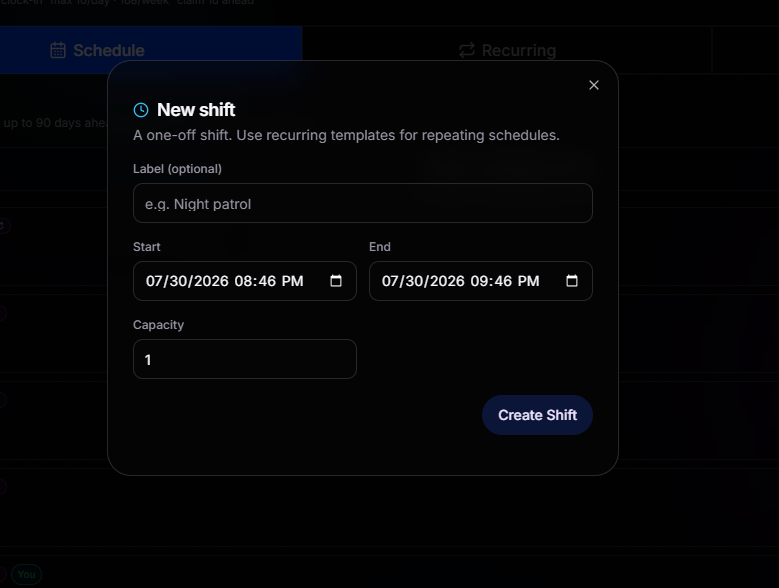 Creating a shift only takes a few fields. Add a name, define the schedule, set the capacity, and you're done.
Choose exactly how many members can claim a shift before it's full. Capacity is enforced automatically as members claim their spots.
## Recurring Templates
For shifts that repeat, create a recurring template once and let BloxCord generate every future shift automatically.
Creating a shift only takes a few fields. Add a name, define the schedule, set the capacity, and you're done.
Choose exactly how many members can claim a shift before it's full. Capacity is enforced automatically as members claim their spots.
## Recurring Templates
For shifts that repeat, create a recurring template once and let BloxCord generate every future shift automatically.
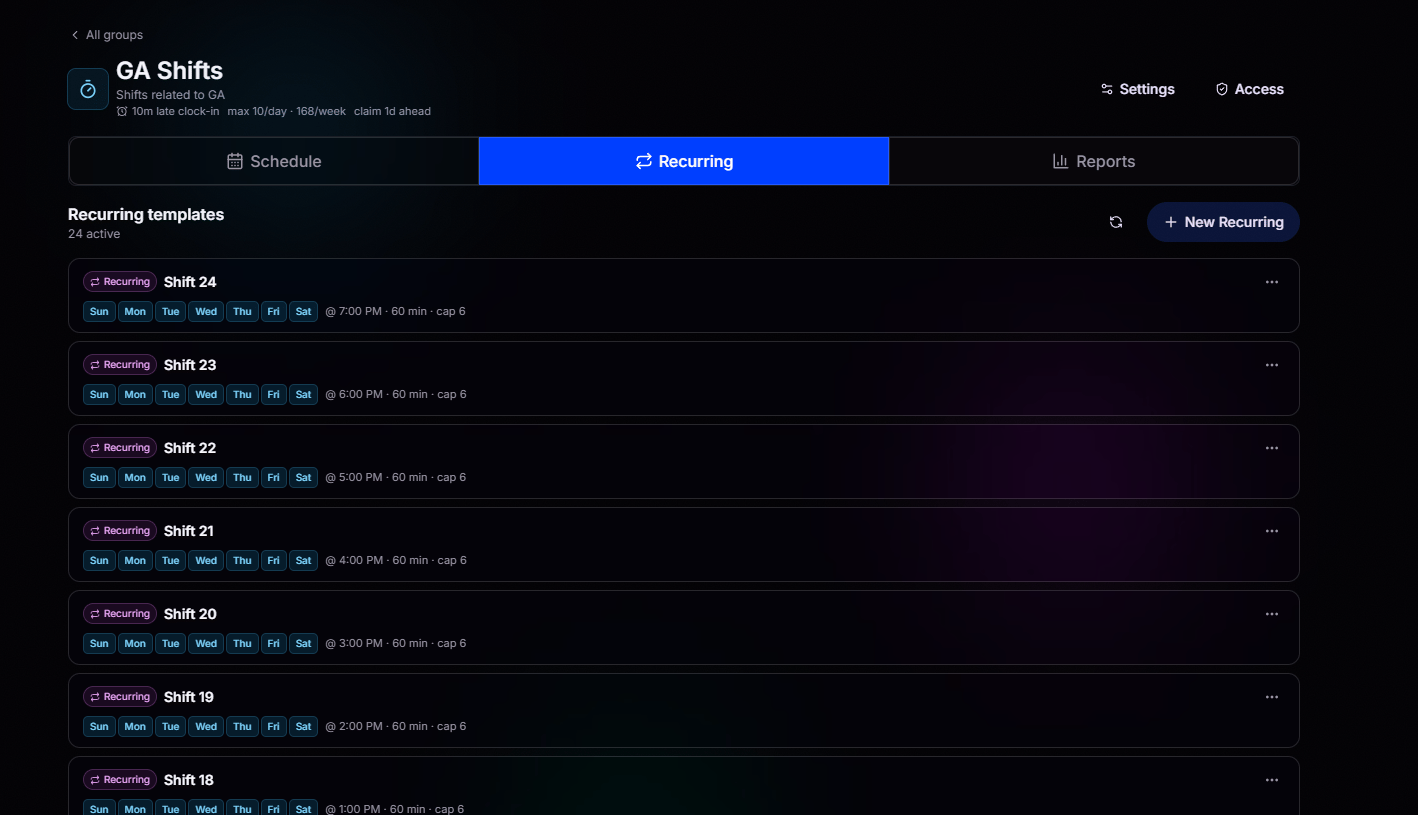 Choose the days, start and end times, and capacity. BloxCord automatically creates every recurring shift on schedule.
Update timing or capacity on a template and future shifts follow instantly.
## Reports
The **Reports** tab turns every clock-in into meaningful insights. Track attendance, shift completion, and hours worked for every member over a rolling time period.
Choose the days, start and end times, and capacity. BloxCord automatically creates every recurring shift on schedule.
Update timing or capacity on a template and future shifts follow instantly.
## Reports
The **Reports** tab turns every clock-in into meaningful insights. Track attendance, shift completion, and hours worked for every member over a rolling time period.
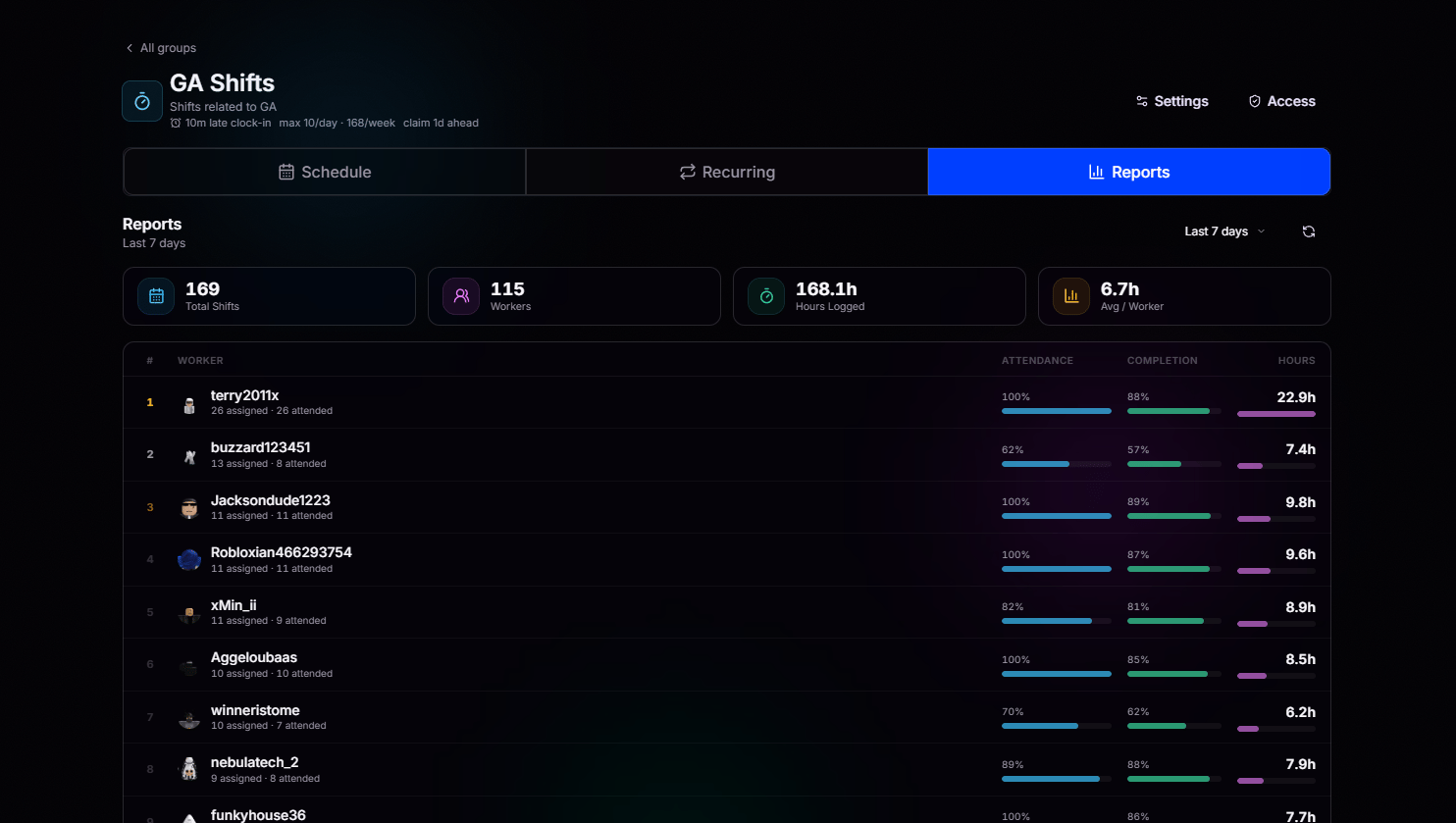 Key metrics are always front and center. Instantly see total shifts, unique workers, hours logged, and average hours per worker for the selected reporting period.
Every worker ranked by hours, with **Attendance** and **Completion** bars showing exactly how reliable they've been over the selected period.
## Group Settings
Click **Settings** at the top of any shift group to fine-tune how it operates. Every rule, limit, and reward for the group lives here.
Rename the group, update its description, and set worker limits like **max claims per day and per week**, the **late clock-in window**, and how many days ahead workers can claim shifts.
Require workers to request coverage before unclaiming, so nobody bails right before a shift starts. They stay on the shift until someone else claims it or an admin steps in. Choose your own coverage window in minutes.
Let clocked-in workers pause their active time when they step away. Break time is subtracted from active time in reports, so hours logged stay honest.
Reward workers automatically when they clock out, based on their active shift time. Set your **points-per-hour** rate and a **minimum active time** so short shifts don't get rounded up to a full reward.
Connect your Discord webhook templates to shift events. Fire notifications on **Clock In**, **Clock Out**, **Shift Completion**, and **Coverage Requested**, all with your own template through BloxCord.
The header keeps your group's rules within easy reach. Instantly see the late clock-in window, daily and weekly claim limits, and how far in advance shifts can be claimed.
## Access Control
Every shift group has its own access controls. Open the **Access** tab to decide exactly who can view, claim, manage, and modify shifts within that group.
Key metrics are always front and center. Instantly see total shifts, unique workers, hours logged, and average hours per worker for the selected reporting period.
Every worker ranked by hours, with **Attendance** and **Completion** bars showing exactly how reliable they've been over the selected period.
## Group Settings
Click **Settings** at the top of any shift group to fine-tune how it operates. Every rule, limit, and reward for the group lives here.
Rename the group, update its description, and set worker limits like **max claims per day and per week**, the **late clock-in window**, and how many days ahead workers can claim shifts.
Require workers to request coverage before unclaiming, so nobody bails right before a shift starts. They stay on the shift until someone else claims it or an admin steps in. Choose your own coverage window in minutes.
Let clocked-in workers pause their active time when they step away. Break time is subtracted from active time in reports, so hours logged stay honest.
Reward workers automatically when they clock out, based on their active shift time. Set your **points-per-hour** rate and a **minimum active time** so short shifts don't get rounded up to a full reward.
Connect your Discord webhook templates to shift events. Fire notifications on **Clock In**, **Clock Out**, **Shift Completion**, and **Coverage Requested**, all with your own template through BloxCord.
The header keeps your group's rules within easy reach. Instantly see the late clock-in window, daily and weekly claim limits, and how far in advance shifts can be claimed.
## Access Control
Every shift group has its own access controls. Open the **Access** tab to decide exactly who can view, claim, manage, and modify shifts within that group.
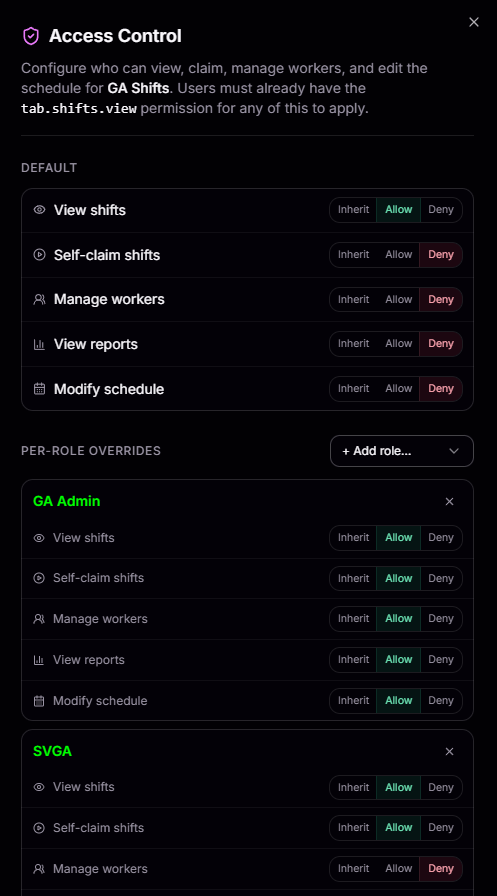 Control **View shifts**, **Self-claim shifts**, **Manage workers**, **View reports**, and **Modify schedule** independently, so people only get what they need.
Every action is a three-state toggle. Inherit from your organization defaults, explicitly Allow, or hard Deny for tight control.
Assign permissions on a role-by-role basis. Override the default access for any role, making it easy to give administrators full control while keeping members limited to claiming shifts.
Access Control builds on your organization's existing permissions. Members must already have the `tab.shifts.view` permission before any role-specific overrides can take effect.
Control **View shifts**, **Self-claim shifts**, **Manage workers**, **View reports**, and **Modify schedule** independently, so people only get what they need.
Every action is a three-state toggle. Inherit from your organization defaults, explicitly Allow, or hard Deny for tight control.
Assign permissions on a role-by-role basis. Override the default access for any role, making it easy to give administrators full control while keeping members limited to claiming shifts.
Access Control builds on your organization's existing permissions. Members must already have the `tab.shifts.view` permission before any role-specific overrides can take effect.