

Step 1: Go to the BloxCord app
Head to app.bloxcord.net in your browser. You’ll be greeted by the login screen.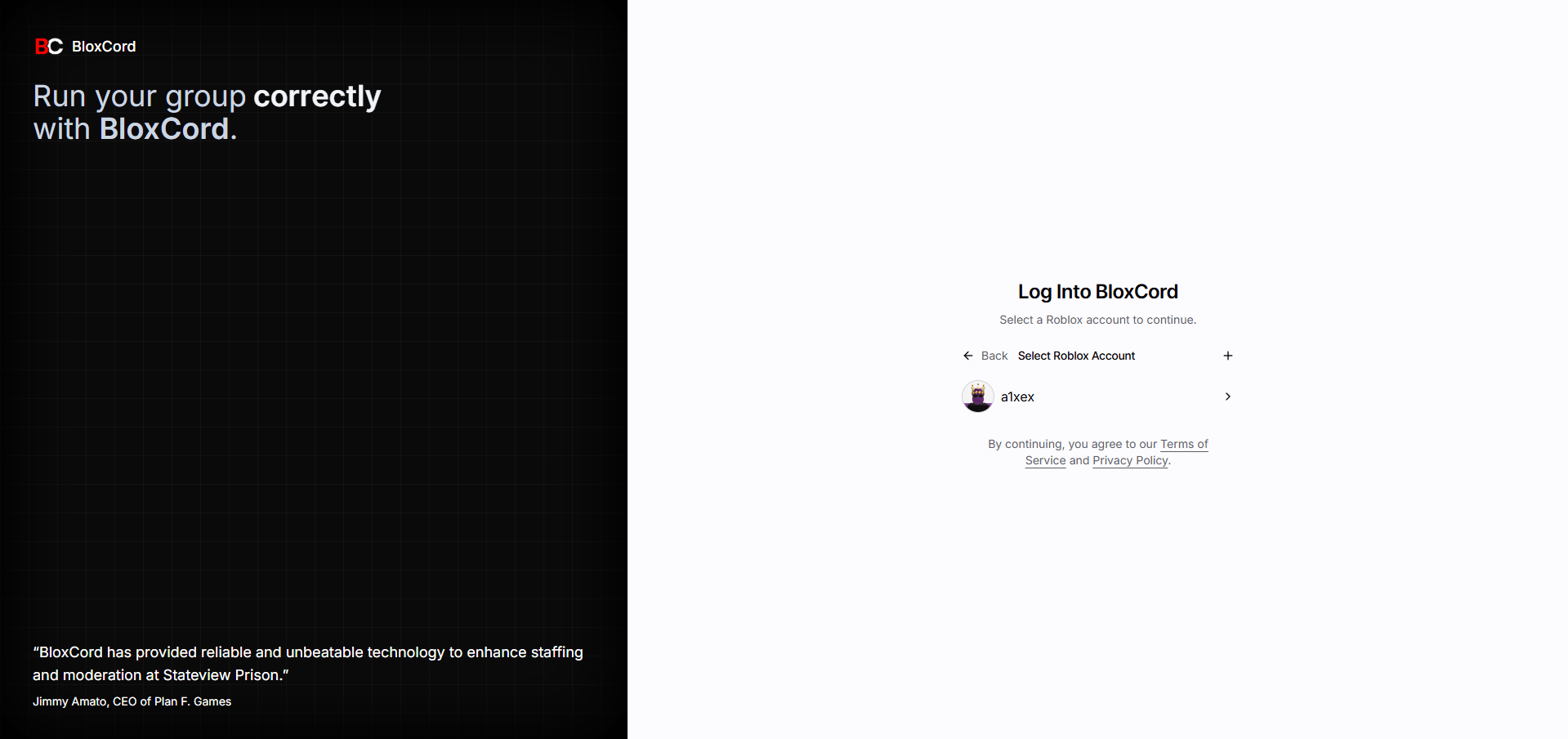
Step 2: Link your account
If you don’t have an account linked yet, click Link or the + button on the login screen. This starts the OAuth2 flow.1
Authorize with Discord
Sign in to Discord and authorize BloxCord to access your account. This is how we identify you across servers.
2
Authorize with Roblox
Next, sign in to Roblox and authorize BloxCord. This links your Roblox identity to your Discord account.
3
Select your Roblox account
If you have multiple Roblox accounts linked, pick the one you want to use.
Step 3: Access your organizations
Once linked, you’ll be taken to the Organizations screen. Here you’ll see every organization you own or belong to, ready to manage.You’re all set. Head into an organization to start using BloxCord.
Troubleshooting
I don't see my organization
I don't see my organization
Make sure the Roblox account you linked is a member of the group tied to that organization. You can add another Roblox account from the login screen using the + button.
OAuth flow won't complete
OAuth flow won't complete
Disable browser extensions that block third-party cookies or popups, then try again. If the issue persists, reach out in our Discord.
Verification issues
Verification issues
Ensure you have linked the correct Discord and/or Roblox account. If the wrong account is linked, your roles may not be assigned or your account may not link properly.