

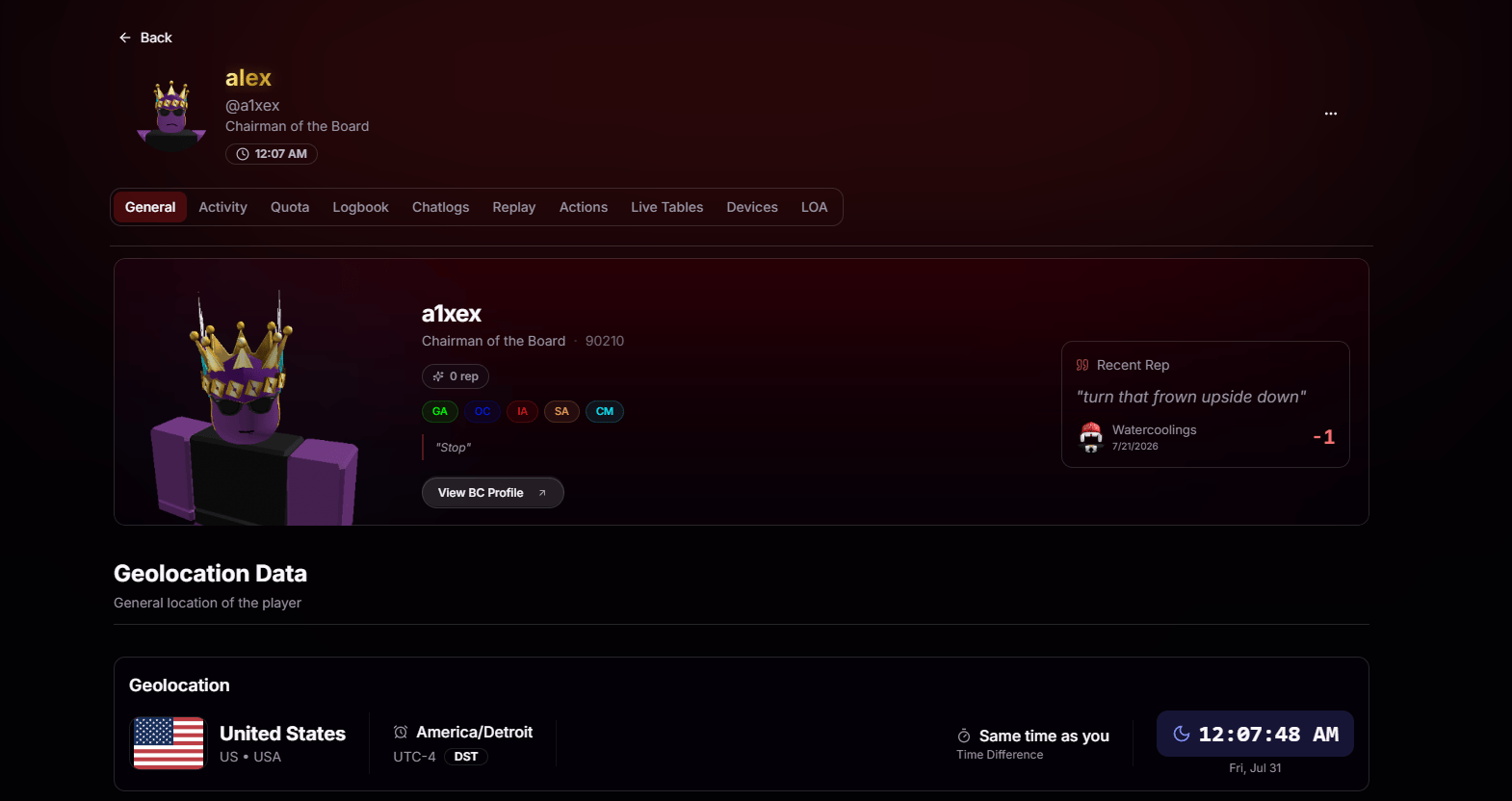
Not every section is available to every user. What you see depends on your organization’s configuration and the permissions assigned to your role.
The Header
The top of the page gives you a quick snapshot of the player at a glance. See their avatar, display name, username, highest role, and current local time, so you immediately know who you’re looking at and whether they’re likely online or asleep.Copy Roblox ID
Grab their numeric Roblox ID for scripts, bans, or reports in one click.
Copy Roblox Username
Copy the exact username, no typos, no case mistakes.
Open Profile
Jump straight to their BloxCord profile or their Roblox profile in a new tab.
Identity & Reputation
Everything you need to identify the player is right at your fingertips. See their role, employee ID, reputation score, and current status message at a glance. The Recent Reputation card highlights their latest feedback, including who left it, when it was submitted, and how it affected their score. If you need the complete picture, select View BloxCord Profile to open their full profile with additional details beyond the audit view.Geolocation
Where in the world are they actually playing from? The Geolocation card breaks it down:Country & region
See the player’s detected country, ISO country codes, and an interactive map pin for a quick visual reference of where they’re connecting from.
Timezone
View the player’s IANA time zone, current UTC offset, and whether daylight saving time (DST) is currently in effect.
Time Difference
See exactly how far ahead or behind their local time is compared to yours. If you’re both in the same time zone, BloxCord simply displays “Same time as you.”
Local Time
See the player’s current local time and date, updated live so you always know what time it is on their end.
Linked Discord Accounts
View every Discord account the player has ever linked to BloxCord, along with the date each account was connected. Previous usernames, renamed accounts, and unlinked accounts remain in the history, making it easy to investigate alternate accounts and review a player’s account history. Need to find the account? Copy the Discord ID with one click or jump directly to the profile on Discord.Owned Gamepasses
View every game pass the player owns in your experience, with each pass ID displayed for easy reference. Quickly verify donor perks, VIP access, and other purchases, or confirm whether a player actually owns the game pass they’re claiming.LoA Status
See the player’s current leave status at a glance. If they have an active or pending Leave of Absence, it will be displayed here. Otherwise, BloxCord clearly shows Not On Leave, so you know they’re expected to be active.Points Balance
Their current points balance plus a 30-day breakdown:Granted
Every point they’ve earned in the last 30 days.
Deducted
Every point they’ve lost in the last 30 days.
Social Connections
See who the player actually spends their time with. BloxCord automatically identifies the people they regularly join in-game, making it easy to spot friend groups, alternate accounts, recurring teammates, or players who frequently appear together during investigations.Friends
Their full friends list with the last time each friend was seen in your group.
Joined Them
Players this user has joined recently, and how long ago.
They Joined
Players who joined this user, with a timeline going back months.