

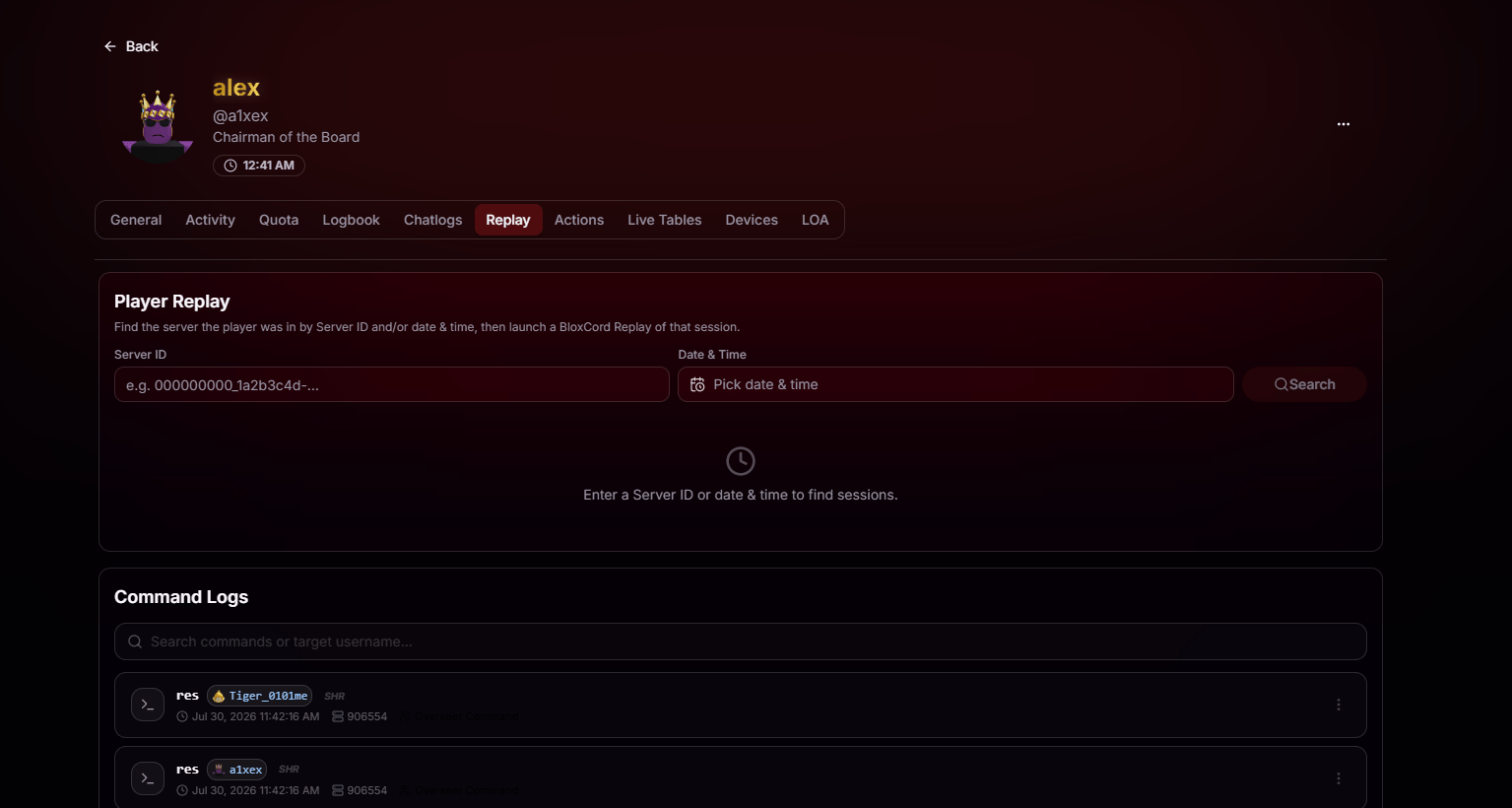
Server ID + Date & Time
Paste in a Server ID from Chat Logs, the Logbook, or anywhere else in Player Audit, choose a date and time, then hit Search to generate the replay.
±6 Hour Automatic Search Window
BloxCord automatically searches a ±6-hour window around your selected time, so you don’t need to know exactly when the session started to find the right replay.
Command Logs, Right Below
Right below the replay search, you’ll find the player’s recent in-game command history. Every entry shows who ran the command, who it targeted, and exactly what happened, making it easy to tell whether the command was used on themselves or another player.Command & Target
See the exact command that was run, who executed it, and who it targeted, with a one-click shortcut to open the target player’s profile.
Admin Level
Every command displays the admin level it was executed with, making it easy to spot potential misuse of elevated permissions.
Server Identifier
Every command includes its Server ID, so you can jump straight into BloxCord Replay and review everything that happened around it.
Team
See which team the player was on when the command was used, so you know exactly what role they were acting in.
Understanding the Replay
BloxCord recreates the game’s layout and every player in the server without textures, allowing replays to load quickly while keeping the focus on player movement and interactions. Drag to rotate the camera, scroll to zoom, and follow the action from any angle.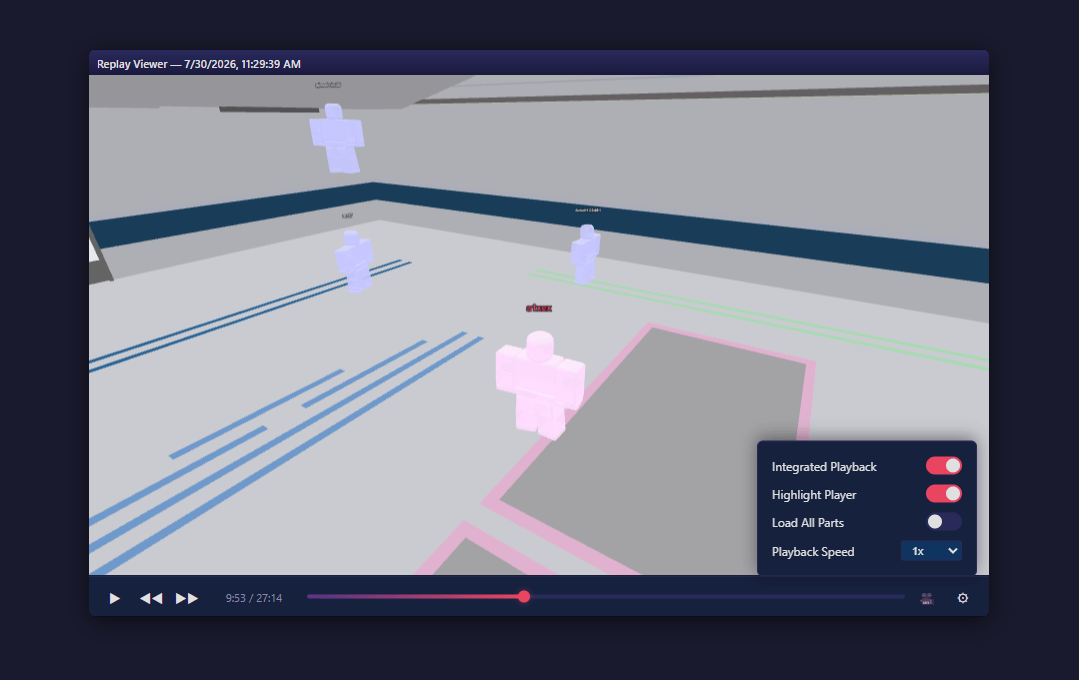
Playback Settings
Open the settings menu to fine-tune the replay: adjust playback speed, toggle Highlight Player to keep your target in focus, and switch on Load All Parts for extra scene detail.
Integrated Playback
Turn on Integrated Playback to see exactly where each player is facing, along with their movement and interactions, giving you the full picture of what happened.
Freecam
Click the camera icon to drop into freecam mode. Fly anywhere in the scene to inspect angles, walls, and hidden spots that the default view can’t reach.
Mouse & Scroll Controls
Use your mouse to change the camera angle and your scroll wheel to zoom in or out, so you can frame every moment exactly how you want it.