
Logbook must be enabled before moderation entries can be created, viewed, or managed. Visit the Features tab to get started.
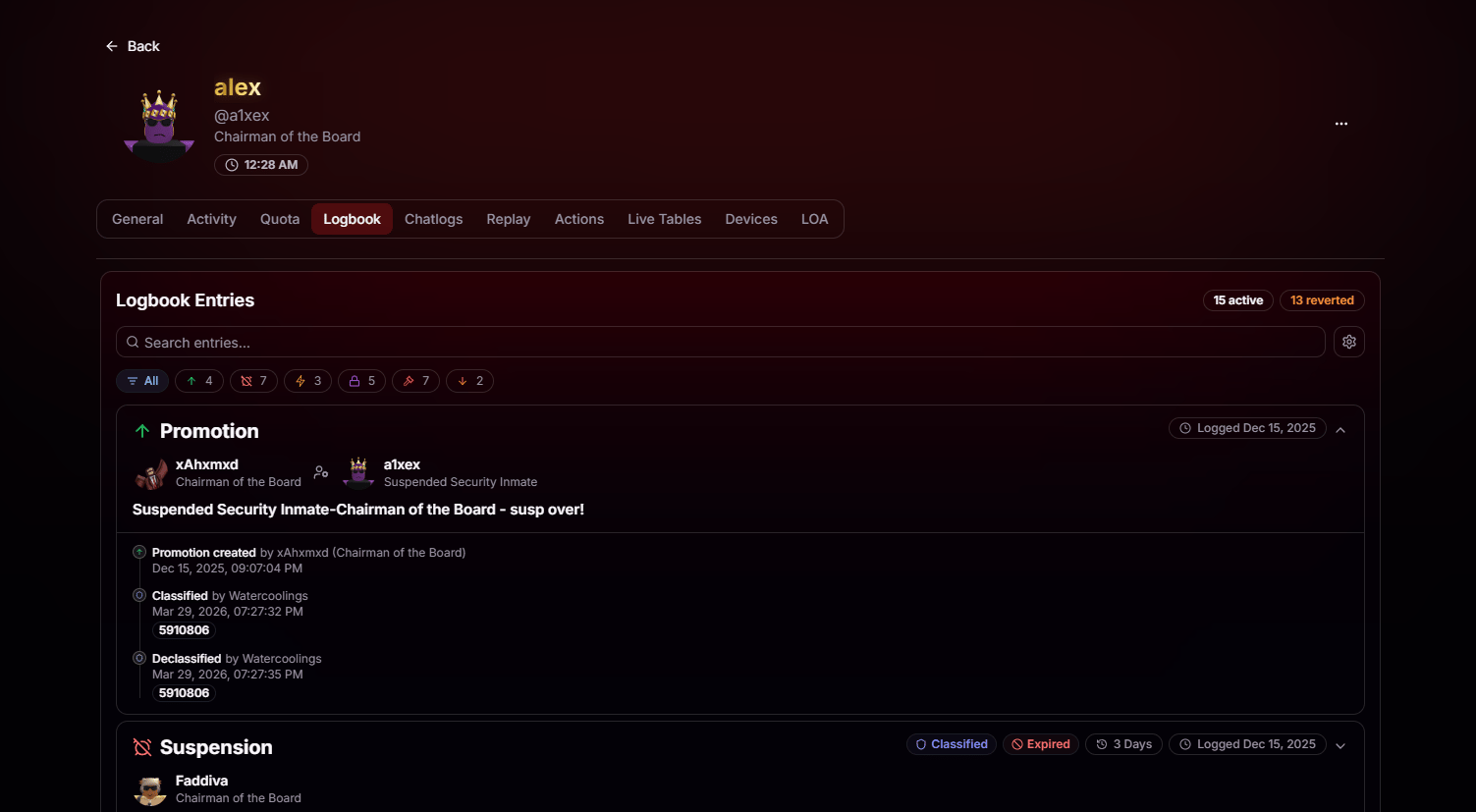
Filter to Exactly What You Need
Quickly narrow the logbook to the entries that matter most. Filter by promotions, demotions, warnings, suspensions, bans, and more, with live counts for each category. You can also search by keyword and instantly see how many entries are active or reverted.Powerful Actions, Permission Controlled
Depending on your role and permissions, the Logbook lets you do much more than view history:Revert Punishments
Undo a punishment when it was issued in error or no longer applies. The entry stays on the record, clearly marked as reverted.
Classify & Declassify
Mark sensitive entries as classified so only authorized staff can view them, or remove the classification when they no longer need to be restricted.
Lock to Specific People or Roles
Restrict an entry so only selected staff or roles can view it, perfect for HR records, sensitive infractions, or ongoing investigations.
Edit the Reason
Update the reason, description, or other details on any entry your permissions allow. Whether you’re correcting a mistake or adding missing context, every change is recorded for accountability.
Full Context on Every Entry
Every logbook entry includes everything you need to understand what happened at a glance:- Entry type and outcome, such as promotions, demotions, warnings, suspensions, bans, and more, with clear visual indicators.
- Who issued and received the entry, including each person’s role at the time it was recorded.
- Complete timestamps for when the entry was created, classified, reverted, or otherwise updated.
- Duration, expiration, and current status, including whether the entry is active, expired, classified, or reverted.
Log an Infraction Your Way
Creating a Logbook entry is quick and flexible. Choose a rule from your handbook to automatically populate the details, or create a fully custom entry from scratch.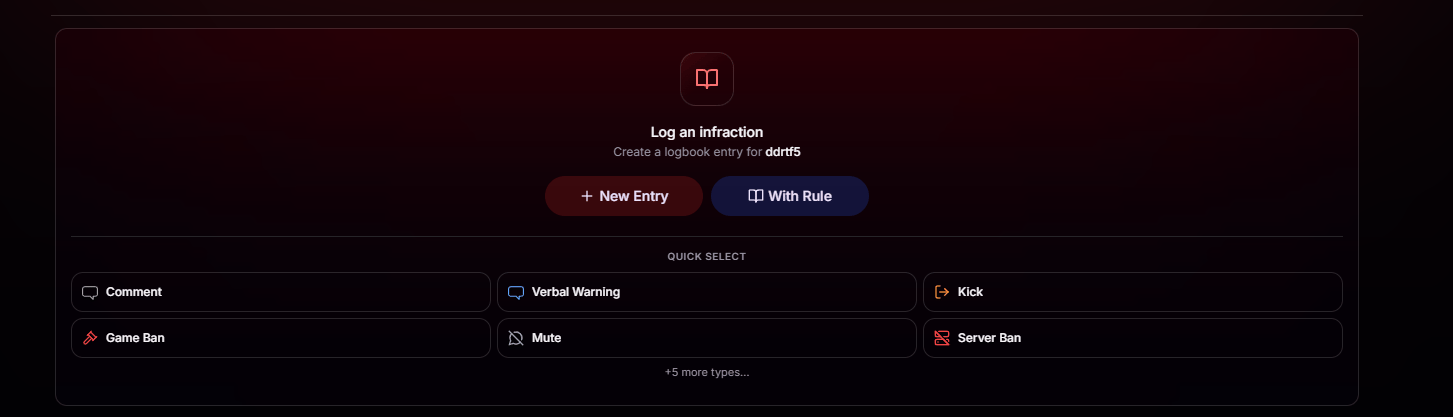
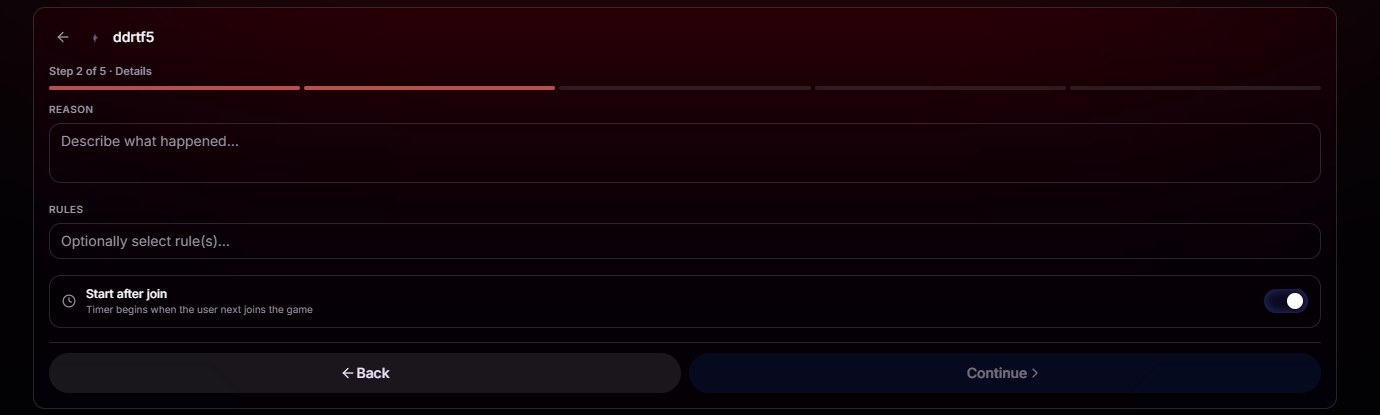
Attach Any Rule
Search your entire rulebook and select the exact rule that applies. BloxCord auto-selects the correct punishment based on the player’s prior active infractions, so escalation happens the right way, every time.
No Rules? No Problem
Skip the rulebook and create a fully custom entry. Set your own reason, punishment type, and duration. Perfect for situations that don’t fit neatly into a written rule.
Custom & Still Rule-Linked
Want the best of both worlds? Customize the punishment however you need, but still attach the relevant rules. Next time that rule is triggered, BloxCord automatically elevates the punishment based on the modified history.
Issue On Behalf of Any Authority
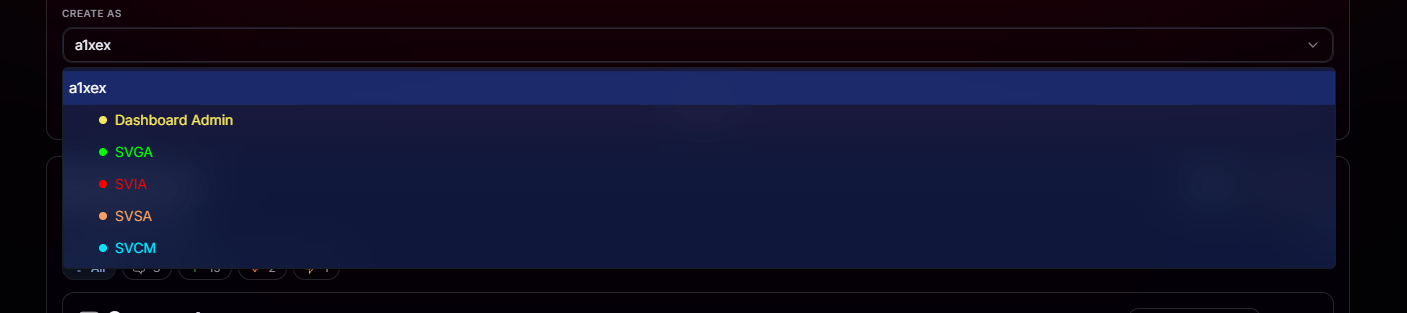
Log entries under yourself, or under any role or department you have permission to represent. Every entry clearly records the authority it was issued under, so accountability is never lost.
Evidence, All in One Place
Add screenshots, videos, and supporting files alongside your report. Drag, drop, or paste your evidence in seconds to give reviewers everything they need.Logbook and Upload Images/Videos must be enabled before media can be attached to moderation entries. Visit the Features tab to get started.

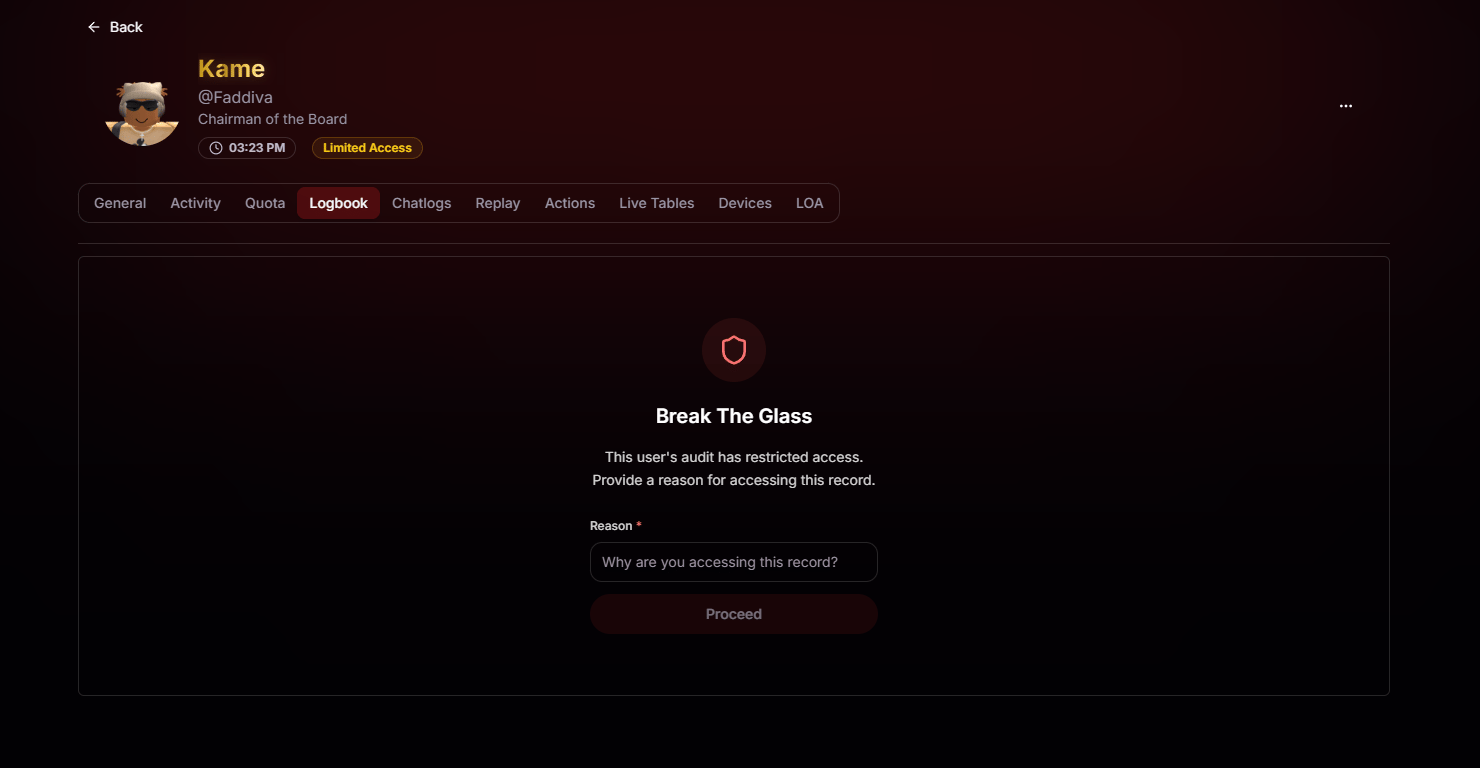
Break Glass Access
Protect sensitive moderation records with a built-in Break Glass workflow. Player Audit Seals let administrators seal a member’s logbook so anyone attempting to access it must provide a reason before breaking the seal, creating a complete audit trail of who viewed the records, when they did, and why.Player Audit Seals must be enabled before audit seals and protected logbook entries can be managed. Visit the Features tab to get started.